Every copy found. Nothing lost.
Headroom finds files that match byte for byte across your personal folders, lets you choose which copy stays, and frees the space without losing a file.
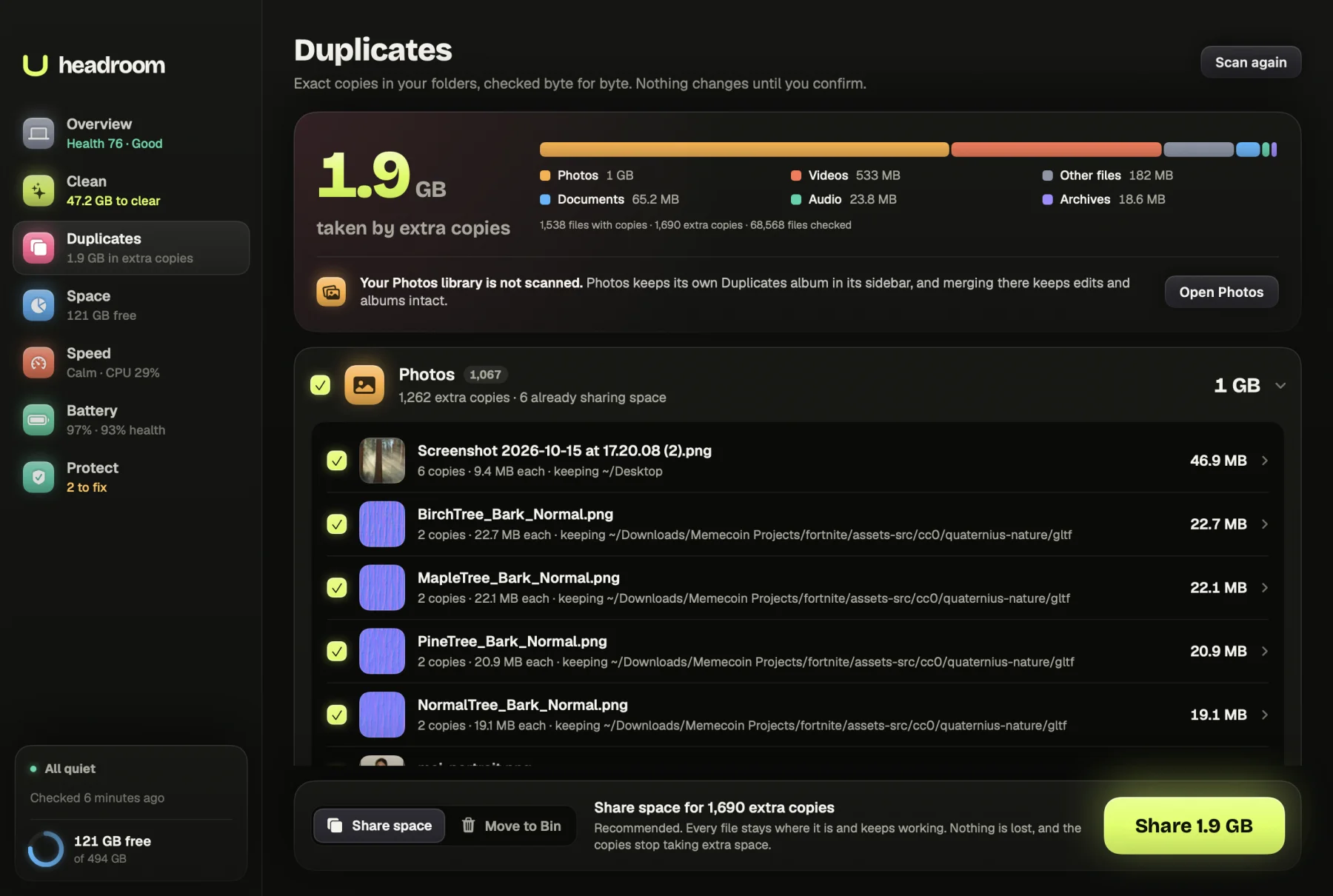
Duplicates build up without anyone meaning to. You import the same card twice, save an attachment again, copy a folder before tidying it and never delete the original. Headroom is a duplicate file finder for Mac that only reports true copies, files whose contents match byte for byte, and gives you a way to get the space back without losing a single file.
What it shows you
Open the Duplicates tab and press Find duplicates. Headroom looks through Desktop, Documents, Downloads, Movies, Music and Pictures, at every file over 100 KB. It leaves out apps, code packages, hidden folders and app libraries, such as your Music and iMovie libraries, because those belong to the apps that made them.
Results are grouped the way you think about your files: Photos, Videos, Documents, Archives and installers, Audio, and Other files. A line at the top counts the files with copies, the extra copies and the files checked. Each set shows how many copies there are, the size of each and which folder the kept copy lives in. Open a set and every copy is listed with its created date and size, marked Kept, Shares space, Goes to the Bin or Extra copy.
Under the exact matches sits Similar photos: near-identical shots such as bursts, edits and resized copies. They are not exact copies, so nothing there is ticked. The largest version in each group is marked so you can see which one to keep.
How it works
Exact matches only
Headroom compares in three steps. First it groups files of the same size, since files of different sizes cannot match. Then it compares the first and last megabyte of each, which quickly rules out files that only happen to share a size. Finally it reads every byte and takes a SHA-256 fingerprint. Only files with the same fingerprint form a set.
Two kinds of file are skipped on purpose. Hard links are extra names for one file, so there is nothing to free. Cloud-only placeholders, files that live in iCloud and are not downloaded, are skipped because reading them would download them.
The kept copy is the oldest, then the one with the shortest path. You can pick a different copy in any set.
Similar photos
For the similar view, Headroom uses Apple's Vision framework to describe what each recent photo looks like, then groups pictures that are close enough to be the same shot. RAW files are left out of this view. You tick the ones you no longer need, and if you tick every photo in a group, Headroom warns you that no version of that shot would stay.
Two ways to get the space back
Share space is the recommended choice. Each extra copy is replaced with an APFS clone of the one you keep. Every file stays in its folder, keeps its name, permissions and dates, and opens exactly as before, but the data is stored once on the disk. If you later change one of them, it becomes its own file again and the other stays as it was. Copies that already share space are recognised and not counted twice.
Move to Bin sends the extra copies to the Bin and leaves the kept copy where it is. Straight after the move, Put back returns every file to where it was. The space comes back when you empty the Bin.
What is free and what the licence does
Scanning is free, and so are the results: every set, every copy, the space they take and the similar photos. The $19 licence turns on the Share space and Move to Bin buttons. It is one payment, with no subscription, for up to three Macs, and Polar offers a full refund within 30 days.
How it keeps your files safe
Nothing changes until you confirm. The confirm sheet, Here's exactly what happens, lists every file and the total size before you go ahead.
Before sharing space, Headroom makes the clone, checks it is identical to the extra copy, and only then swaps it in. It refuses files with a second name, because sharing them would free nothing. Before moving anything to the Bin, it checks the kept copy and the extra again. If either changed or moved since the scan, that file stays and the result tells you why.
Every path is checked again right before it changes. Your Photos library, iCloud Drive and system folders are never touched. After sharing, free space is measured on the disk before and after. Your files never leave your Mac.
If you prefer to do this by hand, our guide to deleting duplicate files on a Mac covers Finder, Music and Terminal.
Who it is for
Photographers and anyone who imports from a camera or phone more than once end up with the same JPEGs and videos in several folders. Video editors copy footage between projects. Anyone who downloads the same PDF or installer twice has duplicates in Downloads.
If your disk is full and you want to know how much of it is repeats, the free scan gives you the figure. For the biggest single files, as opposed to copies, see the guide to finding large files on a Mac, or use the disk space map.
Find your duplicates now
Download Headroom and run the duplicate scan for free. You will see every set and the space it takes before you change anything. When you want the space back, the licence is $19 once. Headroom runs on Apple Silicon Macs with macOS 14 or later.
Questions
How does Headroom know two files are duplicates?
It groups files by size, compares their first and last megabyte, then takes a SHA-256 fingerprint of every byte. Only files whose whole contents match are listed. Names and dates never decide it.
What does Share space do?
It turns each extra copy into an APFS clone of the copy you keep. Both files stay where they are and open as normal, but their data is stored once, so the space comes back without deleting anything.
Does it scan my Photos library?
No. The Photos library is left alone. Photos has its own Duplicates album in its sidebar, and merging there keeps your edits and albums intact.
Can I undo moving duplicates to the Bin?
Yes. Extra copies go to the Bin, and straight after the move a Put back button returns every one to where it was. The space comes back once you empty the Bin.
Is the duplicate file finder free?
Finding duplicates is free, including the similar photos view. Sharing space or moving extras to the Bin needs the $19 one-time licence, which covers up to three Macs.