How to free up space on Mac: the complete, safe guide
See what is filling your Mac, then clear it in the right order: the Bin, Downloads, large files, old backups, apps, caches and System Data.
The quickest way to free up space on a Mac is to see what is using it, then remove the biggest things first. Open System Settings > General > Storage, empty the Bin, then work through Downloads, large files, old iPhone backups and apps you no longer use. A handful of big files usually frees far more than hundreds of small ones.
This guide goes in that order, from the safest and quickest steps to the ones that need more care. Everything here uses tools already on your Mac, with optional Terminal commands for anyone who wants exact numbers.
Check what is using your space
Before you delete anything, get a clear picture. The path is the same on macOS 15 Sequoia and macOS 14 Sonoma:
- Choose Apple menu > System Settings.
- Click General in the sidebar, then click Storage.
- Wait for the bar at the top to finish calculating, then hover over each colour to see its size.
- Scroll down to the list of categories, such as Applications, Documents, iOS Files and Bin. Click the Info button (i) beside a category to look inside.
Apple's guide to Storage settings on Mac describes each category. Two of them, macOS and System Data, only show a size: you can't select or delete anything in them.
If you prefer Terminal, this shows the real free space on your startup disk:
df -h /System/Volumes/Data
It only reads the disk. Use this path rather than df -h /. On modern macOS the startup disk is split into a sealed, read-only system volume and a separate data volume where your files live, and df -h / reports the used space of the small system volume only.
Why the numbers don't always match
Finder, Storage settings and Terminal can disagree by several gigabytes. The usual reason is purgeable space: data macOS can remove on its own when it needs room, such as Time Machine local snapshots and iCloud files that are also stored online. Apple says your Mac counts the space used by local snapshots as available storage, so one tool may call that space free while another calls it used. You don't need to chase the difference. macOS hands purgeable space back when something needs it.
Start with the quick wins
Empty the Bin
Files you delete in Finder go to the Bin (called Trash on a Mac set to US English) and keep using space until you empty it.
- Open the Bin from the Dock and check nothing in it is still needed.
- Choose Finder > Empty Bin, then confirm.
Emptying the Bin is permanent. To stop it filling up again, turn on Empty Bin Automatically in Storage settings, or choose Finder > Settings, click Advanced and tick Remove items from the Bin after 30 days.
Some apps keep their own bin. Photos holds deleted items in Recently Deleted for 30 days. In Mail, choose Mailbox > Erase Deleted Items and Mailbox > Erase Junk Mail.
Clear out Downloads
Downloads collects installers, zip files and second copies of things you already saved elsewhere.
- In Finder, choose Go > Downloads.
- Choose View > as List, then click the Size column header so the biggest files sit at the top.
- Move anything you don't need to the Bin. Disk images (.dmg) and installer packages (.pkg) are safe to remove once the app is installed.
Use the built-in recommendations
The top of the Storage page lists recommendations. Each one is optional and can be changed later.
- Store in iCloud keeps Desktop and Documents files in iCloud Drive, photos in iCloud Photos and messages in iCloud, and keeps only recent files and optimised photos on the Mac when space is short. It needs enough iCloud storage, and files download again when you open them, so it suits a Mac that is usually online.
- Optimise Storage removes Apple TV films and shows you have already watched, and keeps only recent email attachments on the Mac when space is low.
- Empty Bin Automatically erases items that have been in the Bin for more than 30 days.
Apple explains each option in Optimise storage space on your Mac. The same page notes that macOS already clears caches, logs and other files that are safe to delete when space is needed.
Look inside each category
The Info buttons in Storage settings are the fastest way to find big things without Terminal.
- Applications lists your apps with their size and when you last used them.
- Documents has views for Large Files, Downloads, Unsupported Apps and File Browser. File Browser shows how much each folder in your home folder uses, which is often where the surprise is.
- iOS Files lists iPhone and iPad backups and software update files saved on the Mac.
- Other categories either let you delete items directly or open the related app so you can do it there.
One warning: when you select a file in these views and click Delete, macOS deletes it immediately. It does not go to the Bin and you can't undo it. If you are unsure, click Show in Finder instead and move the file to the Bin yourself, so you can still put it back.
Find and remove large files
Big files are where most space comes back. Videos, screen recordings, disk images, archives and virtual machines are the usual finds. Besides the Large Files view, Spotlight can list every file over a set size in a second or two:
mdfind -0 -onlyin ~ 'kMDItemFSSize > 1000000000' | xargs -0 du -h | sort -hr | head -20
This asks Spotlight for files in your home folder over 1 GB, measures each one and prints the 20 biggest. It only reads. The list can include items inside your Library folder and app bundles, which belong to apps: leave those alone and manage them from the app that made them. Our guide to finding large files on a Mac covers Finder searches, Smart Folders and more Terminal options.
Delete old iPhone and iPad backups
If you have ever backed up an iPhone or iPad to this Mac, each backup can run to many gigabytes, and old ones stay until you remove them. The simplest route is Storage settings: click the Info button beside iOS Files, select an old backup and click Delete.
Or use Finder, as Apple describes in Locate and manage backups of your iPhone, iPad and iPod touch:
- Connect the device with a cable and select it in the Finder sidebar.
- In the General tab, click Manage Backups.
- Control-click the backup you don't need and choose Delete. Choose Archive instead if you want to keep a copy that later backups won't overwrite.
- Click OK.
A deleted backup can't be recovered, so keep at least one recent backup of any device you still use, on the Mac or in iCloud.
Uninstall apps you no longer use
In Storage settings, open Applications and sort by size or by last used. Before you remove an app, check whether it came with its own uninstaller, which also removes helpers and login items. Apple recommends that route in Delete or uninstall apps on Mac. Otherwise, drag the app from the Applications folder to the Bin.
Removing an app doesn't cancel subscriptions you bought through it, and it can leave settings and caches in your Library folder. Those leftovers are usually small, but games, creative apps and developer tools can leave gigabytes behind in ~/Library/Application Support.
Clear the caches that are actually big
Caches are files apps keep so they can load things faster. They rebuild themselves, so removing them is generally safe, but only a few are worth the effort: browsers, music and video streaming apps, chat apps and developer tools. To see which caches are large:
du -sh ~/Library/Caches/* 2>/dev/null | sort -h | tail -10
This lists the ten biggest folders in your user cache folder, largest last, and changes nothing. To clear one, quit the app, choose Go > Go to Folder… in Finder, type ~/Library/Caches, open that app's folder and move what is inside it to the Bin. Leave the folder itself in place. Our guide to clearing cache on a Mac has browser-by-browser steps.
Remove duplicate photos and files
Photos has a duplicate finder built in. Click Duplicates under Utilities in the sidebar, select the sets you want to combine and click the Merge button, which shows how many items it will combine. Photos keeps a single version and moves the extras to Recently Deleted, where you can recover them for 30 days. Apple's steps are in Remove duplicate photos and videos on Mac.
For other files there is no built-in tool. Exact copies pile up in Downloads and on the Desktop: the same PDF saved twice, or "report (1).pdf" next to "report.pdf". Check that two files really are identical before you delete one, because matching names and sizes are not proof. There is also a catch: when you duplicate a file in Finder on an APFS disk, the copy is a clone that shares the original's storage until one of them changes, so deleting it frees almost nothing.
Clean up developer files
If you write code, build output can outweigh everything else. Xcode keeps build data, simulators and device support files in ~/Library/Developer. Every JavaScript project has its own node_modules folder. Docker Desktop keeps images and volumes inside one large disk image, and Homebrew keeps old downloads. If you use Xcode, Storage settings may also show a Developer category that can remove Xcode project build files and caches.
To see how much the Xcode folder holds:
du -sh ~/Library/Developer
This only measures. Everything in these folders can be rebuilt or downloaded again, but rebuilding takes time, so clear projects you have finished with rather than the one you are working on today.
Deal with System Data
System Data is the catch-all for caches, logs, swap files, temporary files and other data macOS manages. You can't clear it from Storage settings, but you can shrink it. Restart first, which clears swap files and many temporary files. Then check for Time Machine local snapshots:
tmutil listlocalsnapshots /
This lists any local snapshots on your startup disk and changes nothing. macOS removes them on its own as they age or when space is needed. If you need the space now, Apple's method is to choose System Settings > General > Time Machine, click Options…, set Backup Frequency to Manually, wait a few minutes, then set it back. Our guide to what System Data is on a Mac goes through everything else it contains.
Move files off the Mac
Some files you want to keep but don't need on the internal disk: finished video projects, photo archives and old project folders. Copy them to an external drive, check the copies open, then delete the originals.
For files you rarely open, compression helps. Control-click a file or folder in Finder and choose Compress to make a .zip. It shrinks text, code and documents well, but barely touches video, photos or music, which are compressed already.
What not to delete
Some folders look tempting and are not safe to clear by hand:
- /System and /Library at the top of the disk. macOS protects most of /System, and the rest belongs to installed software.
- Your Photos library. It is a single package in Pictures. Delete photos from inside Photos, never by opening the package.
- ~/Library/Mail, ~/Library/Messages and ~/Library/Keychains. These hold your actual email, chats and saved passwords.
- Files in iCloud Drive. Deleting one there deletes it on every device. A file showing a cloud icon isn't using local space anyway.
- Swap and sleep files in /System/Volumes/VM and /private/var/vm. macOS needs them and recreates them.
Do it faster with Headroom
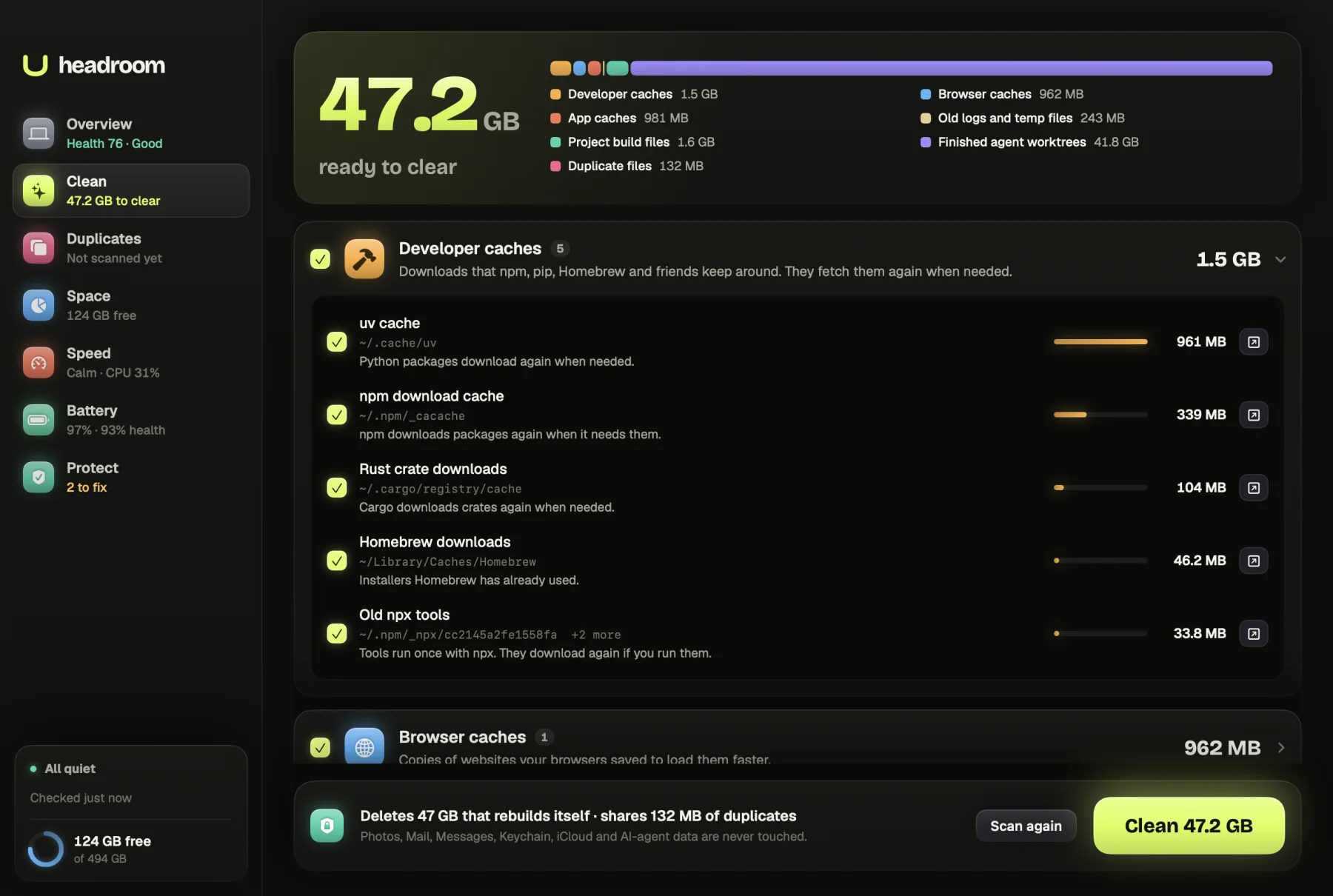
Headroom does the sorting for you. The free scan finds caches, old logs, temp files, old installers, leftover build folders and large files you haven't opened in months, with a plain note on what each one is and whether it comes back. You choose what goes, nothing is removed until you confirm, and Headroom never touches Photos, Mail, Messages, iCloud or Keychain. Your files never leave the Mac.
The $19 one-time licence turns on the cleaning itself, along with duplicate removal and the other fixes, on up to three Macs with no subscription. Download Headroom and run the scan to see how much you could get back.
Questions
How much free space should a Mac have?
Apple doesn't publish a fixed figure. Leave enough room for the next macOS update, which needs several gigabytes to download and install, plus working space for swap and caches. If the bar in Storage settings is nearly full, clear space before you update.
Why is my Mac storage still full after deleting files?
Deleted files sit in the Bin and keep using space until you empty it. Time Machine local snapshots and other purgeable files can also hold space for a while, and macOS releases them when it needs room.
Is it safe to delete System Data on a Mac?
You can't delete System Data as a block, and you shouldn't delete system folders by hand. Restarting, clearing large app caches and letting macOS remove old local snapshots are the safe ways to shrink it.
Does Optimise Storage delete my files?
No. It removes Apple TV films and shows you have already watched, which you can download again, and keeps only recent email attachments on the Mac when space is low. Your own documents are left alone.
Will clearing caches make my Mac faster?
Rarely. Caches exist to make apps faster, so an app is often a little slower the first time after you clear them. Clear caches to recover space or fix a misbehaving app, not for speed.