See what is slowing your Mac.
Headroom shows live processor and memory use, and the apps taking the most of each, so you can tell a busy Mac from one that is out of memory.
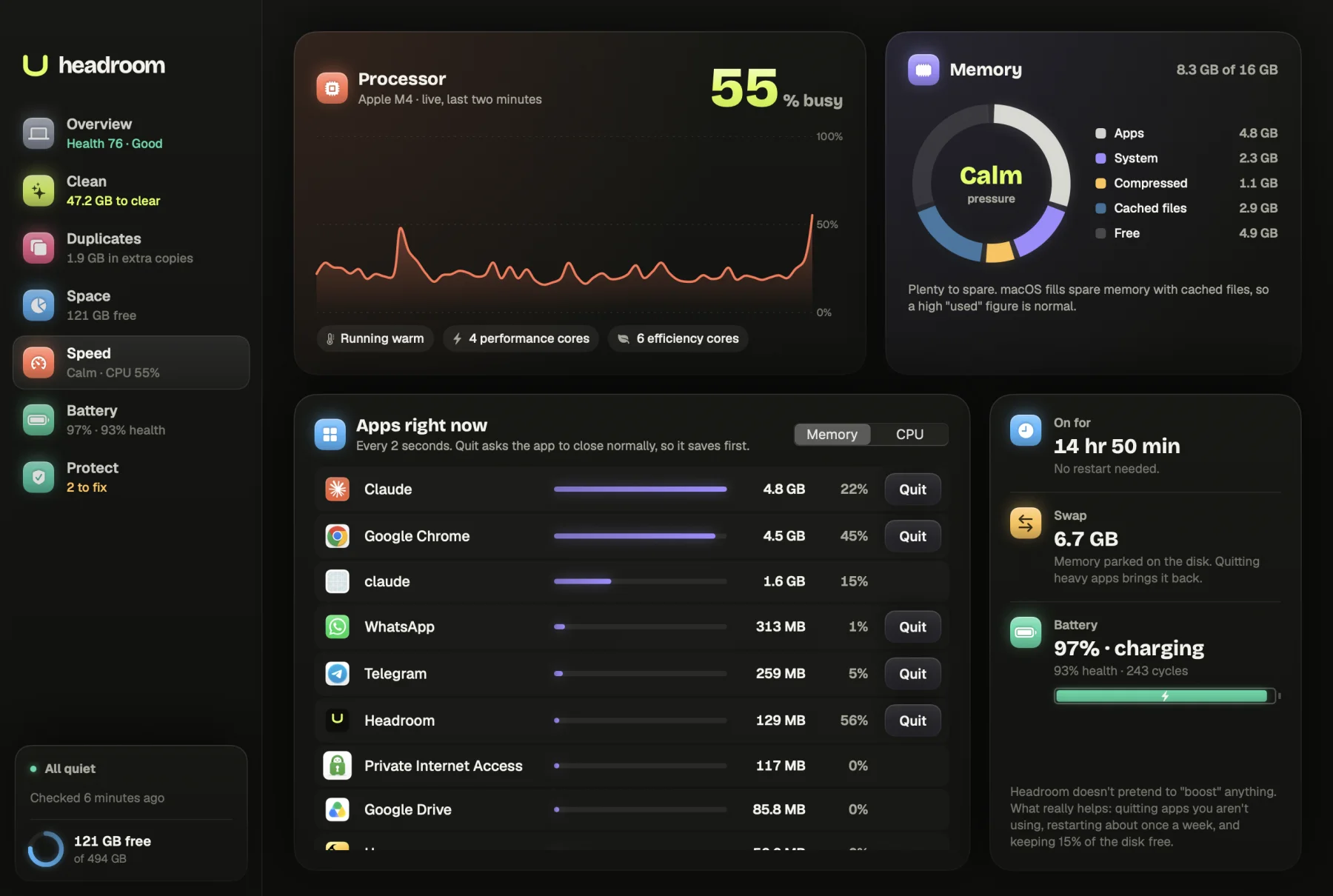
A slow Mac usually has one of three causes: something is keeping the processor busy, memory has run short, or the Mac is hot. Headroom's Speed screen is a Mac performance monitor that shows all three live, in plain words, with the apps responsible listed underneath. It does not offer to boost anything. It shows you the facts so you can decide.
What it shows you
Processor
The top panel shows how busy the processor is right now, as one large percentage, with your chip's name and a live chart of the last two minutes. Small labels underneath say whether the Mac is running cool, warm or hot, and how many performance cores, efficiency cores and graphics cores it has.
Memory
The memory panel is a ring split into Apps, System, Compressed, Cached files and Free, with the total used against your Mac's memory. In the middle is one word for memory pressure: Calm, Busy or Strained. A line underneath says what that means for you. When it is Busy, for example: "Getting full. macOS is compressing memory to make room. Quitting an app you aren't using helps."
Apps right now
Below, Apps right now lists the apps using the most, refreshed every two seconds. Switch between sorting by Memory and by CPU. Each app has a Quit button.
At a glance
A side panel shows how long the Mac has been on, with a nudge to restart once it has been running for more than a week, how much memory is in swap, and, on a MacBook, the battery's charge and health.
How it works
Headroom reads its figures straight from macOS, with nothing to install and no settings to change.
The processor figure comes from the counters macOS keeps for time spent working and idle, sampled every two seconds. The last 60 samples make the two-minute chart.
For each app, Headroom adds up the memory and processor time of every process inside it, so a browser's many helper processes count as the browser rather than as a dozen strange names. macOS's own system apps are left out of the list, since you would not quit them.
Memory pressure comes from the free memory level macOS reports, the same figure the memory_pressure command in Terminal shows. Headroom calls 30% free or more Calm, 15% or more Busy, and anything lower Strained. Swap and heat come from macOS too: swap is memory parked on the disk, and heat is the thermal state macOS reports for the chip.
The guide to memory pressure on a Mac explains the colours and why full memory is normal. For a step-by-step diagnosis, see why a Mac runs slow.
No boosts, only facts
The Speed screen says so plainly: Headroom doesn't pretend to boost anything. There is no button that frees memory, because macOS manages memory itself, and clearing cached memory only means apps load from the disk again. What really helps is what the screen suggests: quit apps you are not using, restart about once a week, and keep 15% of the disk free.
What is free and what the licence does
Everything on the Speed screen is free, for as long as you use it. That includes the live charts, the app list and Quit. The $19 licence covers the fixes on other screens: cleaning, removing duplicates, moving large files to the Bin, fixing risky startup scripts and turning off startup items. It is one payment, with no subscription, for up to three Macs, with a full refund within 30 days through Polar.
How it keeps your work safe
Quit asks an app to close normally, exactly as if you chose Quit from its menu. If you have unsaved work, the app asks you to save it first. Headroom never force quits. Finder and Headroom itself have no Quit button.
The rest of the screen only reads. It changes no settings, and nothing about your apps or files leaves your Mac. The only network request Headroom makes checks your licence key.
Who it is for
Developers running dev servers, builds, containers and simulators at once, who want to see which one is eating memory. People who keep dozens of browser tabs open. Anyone whose fans spin up for no clear reason, or whose Mac feels sluggish after days without a restart.
It also helps when you are deciding whether you need more memory. If pressure stays Calm while you work, more memory would change little. If it often reads Strained, the app list shows which apps push it there. On a MacBook, the battery health screen shows which apps use the most energy.
Watch your Mac live
Download Headroom and open the Speed tab. It is free, and there is no account to create. If you also want to clear space or tidy startup items, the licence is $19 once. Headroom runs on Apple Silicon Macs with macOS 14 or later.
Questions
What is memory pressure on a Mac?
It is how hard macOS is working to find room in memory. Headroom reads the free memory level macOS itself reports and calls it Calm, Busy or Strained. A high used figure on its own is normal, because macOS fills spare memory with cached files.
Why can one app show more than 100% CPU?
The figure for each app is a percentage of one core. A busy app can use several cores at once, so it can go past 100%. The large number at the top is the whole Mac, from 0 to 100.
Does quitting an app from Headroom lose my work?
Quit asks the app to close normally, the same as choosing Quit from its own menu, so it can ask you to save first. Headroom never force quits anything.
Does Headroom free up RAM or speed up my Mac?
No, and it does not pretend to. Clearing memory does not make a Mac faster. Headroom shows what is using memory and processor time, so you can quit what you are not using.
Is the Speed screen free?
Yes, all of it, including Quit. The $19 licence only covers the fixes on other screens, such as cleaning and removing duplicates.