Know what runs on your Mac.
Headroom checks macOS's own protections and everything set to start by itself, explains anything odd in plain words, and fixes it only when you say so.
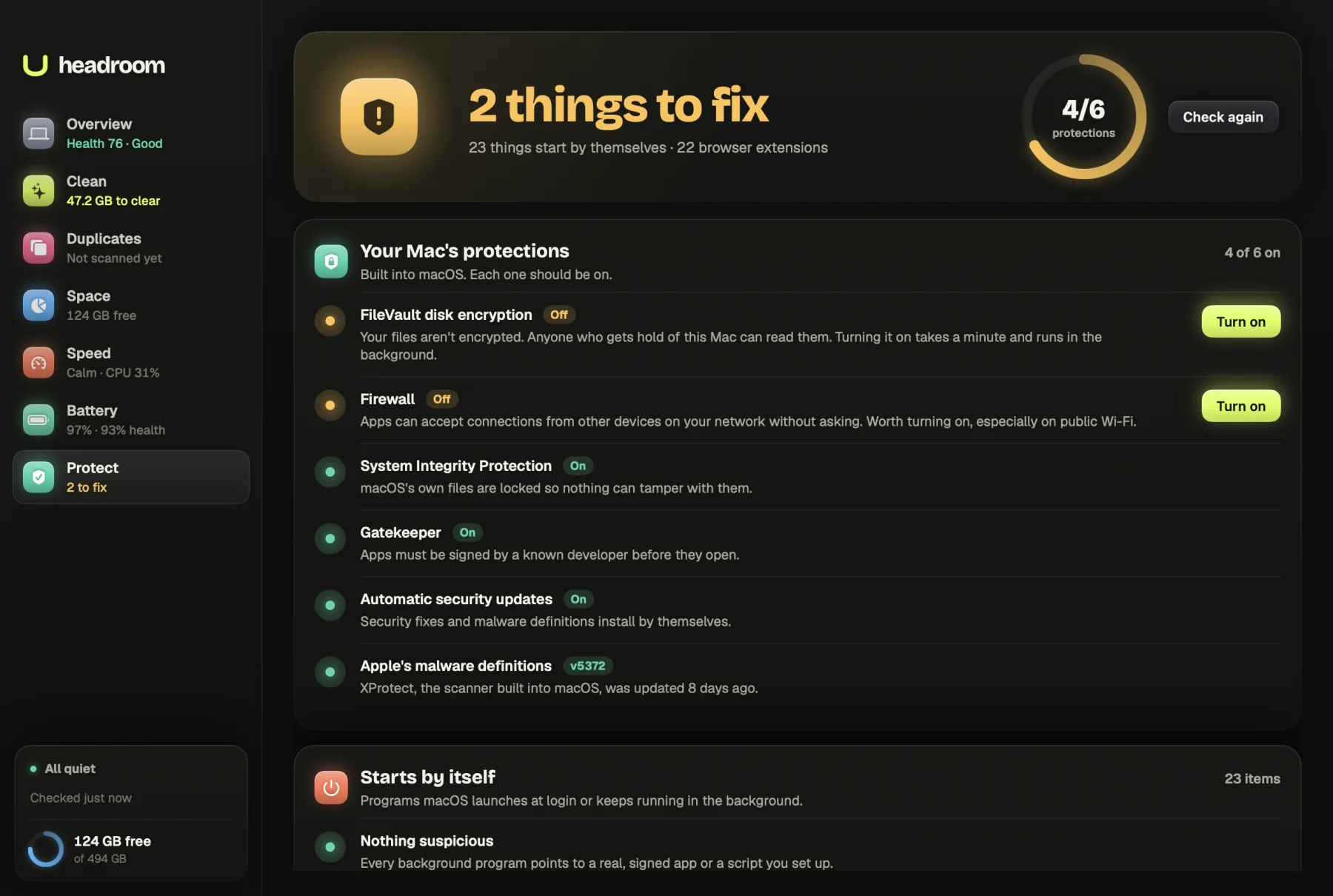
Most Mac security problems are not dramatic. A protection was switched off and never switched back on, an app you deleted left a startup file behind, or a line pasted into a shell file downloads something every time Terminal opens. Headroom's Mac security check reads all of these, explains each finding in plain words and only changes something when you ask.
What it shows you
Open the Protect tab and press Run security check. The check only reads. When it finishes, the header says Protected or how many things there are to fix, with a ring showing how many of macOS's six protections are on. Every finding comes with what it means and what to do.
Your Mac's protections
Six checks, each marked On or Off with a sentence on what that means: FileVault disk encryption, Firewall, System Integrity Protection, Gatekeeper, Automatic security updates, and Apple's malware definitions, which shows the XProtect version and how long ago it last updated. Where one is off, a button opens the right pane of System Settings so you can turn it back on. For System Integrity Protection, which can only change in Recovery, Headroom gives you the steps.
Starts by itself
Every launch agent and daemon in your own LaunchAgents folder and the system-wide LaunchAgents and LaunchDaemons folders, with the full command each one runs. Anything odd gets a badge: Suspicious, Unverified or Leftover, with the reasons. Typical reasons are "Decodes hidden code every time it starts", "Downloads something from the internet", "Random-looking name, a common malware trick", "Not signed by a known developer", or that it points to a program that is no longer there. When a command hides code in base64, What's hidden shows the decoded text so you can read what it does. Items that look normal are folded away under one line.
Startup scripts and schedules
Your shell files (.zshrc, .zprofile, .zshenv, .zlogin, .bashrc, .bash_profile and .profile) and your crontab, read line by line. A line is flagged as Risky if it downloads code and runs it, unpacks hidden code, uses AppleScript to run hidden commands, or starts a background program from a temporary folder.
Profiles, extensions, remote access and apps
Configuration profiles can change settings, add certificates or route traffic, so any installed profile is listed for review. Browser extensions in Chrome, Brave, Edge and Arc are listed with what they can reach, those that read every website first. Remote access apps are flagged for review: fine if you set them up, and a favourite of scammers if you did not. Finally, Apps asks Apple's Gatekeeper to verify every app in your Applications folders, and marks any that are not verified or were changed after their developer signed them.
How it works
Headroom asks macOS directly, using the same tools Apple ships: the FileVault status, the firewall's state, System Integrity Protection, Gatekeeper, your Software Update preferences and the XProtect version on disk. For startup items it opens each file, checks that the program it points to still exists and is signed, and applies a set of plain rules to the command. For extensions it reads each one's manifest to see which sites and permissions it asks for.
Headroom does not read the apps listed under Open at Login in System Settings. The guide to login items on a Mac covers those, and our guide to checking a Mac for malware explains what macOS already does on its own.
What is free and what the licence does
The full check is free: every protection, every startup item, every decoded script, every extension and the app signature check, plus the buttons that open System Settings and show files in Finder. The $19 licence turns on Turn off for your own startup items, and Disable line and Remove job for risky lines in your shell files and crontab. It is one payment, with no subscription, for up to three Macs, with a full refund within 30 days through Polar.
How it keeps your Mac safe
Turning off a startup item stops it and moves its file into a dated Headroom Quarantine folder in Downloads, with a README noting the label, the reasons and the command. It cannot start from there, and the evidence stays if you want to report it or put it back. System-wide items need your administrator password, so Headroom shows you the file in Finder rather than asking for it.
Disable line turns a risky line in a shell file into a comment and keeps a dated backup of the file beside it. Remove job takes the line out of your crontab and saves a backup of the old schedule in Downloads. Both check first that the line has not changed since the check ran.
Nothing about your Mac leaves it. The only network request Headroom makes checks your licence key.
Who it is for
Anyone who installed something from an unfamiliar site, or followed a stranger's instructions to fix a problem. Anyone who has had a call from someone claiming to be support and wants to check that no remote access app was left behind. Developers whose shell files have collected years of pasted install lines. And anyone setting up a second-hand Mac who wants to know whether a configuration profile came with it.
Check your Mac now
Download Headroom and run the security check for free. You will see every protection and everything that starts by itself before anything changes. When you want to turn items off from inside Headroom, the licence is $19 once. Headroom runs on Apple Silicon Macs with macOS 14 or later.
Questions
What does the Headroom security check look at?
Six things: macOS's own protections, programs that start by themselves, shell startup files and scheduled jobs, configuration profiles and browser extensions, remote access apps, and the signature of every app.
Is Headroom an antivirus?
No. It does not replace XProtect, the malware scanner built into macOS. It checks that XProtect and the other protections are on and up to date, and shows you the places unwanted programs tend to hide.
Does it check apps that open at login?
No. Headroom reads the LaunchAgents and LaunchDaemons folders, your shell files and your crontab. Apps set to open at login are listed in System Settings > General > Login Items & Extensions (Login Items on macOS 14), where you can remove them.
What happens when I turn off a startup item?
Headroom stops it and moves its file into a dated Headroom Quarantine folder in Downloads, with a note of what it ran. It cannot start from there, and you keep the evidence. System-wide items need your password, so Headroom shows you the file in Finder instead.
Which browsers does it check for extensions?
Chrome, Brave, Edge and Arc. Extensions that can read and change every website are listed first, along with any sensitive permissions, such as access to your cookies or history.
Is the security check free?
Yes. The whole check and every finding are free. The $19 one-time licence turns on Turn off for startup items and the fixes for risky lines in your shell files and crontab.