How to find and delete duplicate files on Mac safely
Find duplicate files on a Mac with Photos, Music, Finder and Terminal, confirm they are true copies, and remove the extras without losing anything.
macOS has no general duplicate file finder, but Photos and Music each have one built in, and Finder plus a short Terminal command cover everything else. The rule that keeps this safe: a duplicate is a file whose contents match another byte for byte. A matching name or size is a clue, not proof. Once you have confirmed a copy, move the extra to the Bin and keep the one in the place you actually use.
This guide covers each tool in turn, then the APFS catch that makes some duplicates cost almost no space, and which copies you should never touch.
What counts as a duplicate
It helps to separate three things that all get called duplicates:
- Exact copies. Two files with identical contents, often with different names, such as
report.pdfin Documents andreport (1).pdfin Downloads. Removing the extra loses nothing. - Similar files. An edited photo and its original, a resized export, two drafts of a document. These are not duplicates, and only you can decide which to keep.
- Same name, different file. Two files called
invoice.pdfin different folders can be completely different invoices. Never delete on name alone.
Exact copies tend to collect in Downloads, on the Desktop and in folders you have copied between drives. Names ending in "copy", "(1)" or "2" are a good place to start looking.
Remove duplicate photos and videos in Photos
Photos finds duplicates in your library for you, on macOS 15 Sequoia and macOS 14 Sonoma alike.
- Open Photos and click Duplicates below Utilities in the sidebar. If you can't see it, hover over Utilities and click the arrow beside it.
- If you use iCloud Shared Photo Library, choose Both Libraries from the library pop-up menu in the toolbar so you see every duplicate.
- Select the sets you want to combine, or press Command-A to select them all.
- Click the Merge button, which shows how many items it will merge, then confirm.
Photos keeps a single item for each set and moves the extras to Recently Deleted, where you can recover them for 30 days. Apple's steps are in Remove duplicate photos and videos on Mac. In a large library Photos can take a while to find every duplicate, so check back later if the list looks short.
Don't hunt for duplicate photos inside the Photos Library package in Finder. It is managed by Photos, and changing files inside it can damage the library.
Find duplicate songs in Music
Music can show duplicates in your library, as Apple explains in Find duplicate items in Music on Mac.
- Click Songs in the sidebar and select a song.
- Choose File > Library > Show Duplicate Items to list songs that share a title and artist.
- For true duplicates only, hold the Option key and choose File > Library > Show Exact Duplicate Items. These match on song, artist, album and version.
- Select the extras and press Delete.
- Click Done at the bottom right, or choose File > Library > Show All Items, to return to your full library.
Check before you delete. The plain duplicates list includes the same song on an album and a compilation, which you may want to keep. If Sync Library is on, deleting a song removes it from your library on your other devices too.
Spot likely duplicates in Finder
Finder can't compare contents, but it can put likely duplicates side by side.
- Open the folder in Finder, such as Downloads, and choose View > as List.
- Click the Name column to sort. Copies with "(1)" or "copy" in the name land next to the original.
- Click the Size column to sort by size. Two files with exactly the same size and kind are candidates worth checking.
- Select a file and press Space to preview it with Quick Look, then do the same with its twin.
To search the whole Mac, press Command-F, choose This Mac, set the first pop-up menu to Name and the next to contains, and type copy. Click Save to keep it as a Smart Folder.
A preview that looks the same doesn't prove the files match, so confirm with the next step before deleting anything you care about.
Confirm exact duplicates with Terminal
A checksum is a long code worked out from every byte of a file. Two files with the same SHA-256 checksum have identical contents. To compare two files:
shasum -a 256 ~/Documents/report.pdf ~/Downloads/report\ \(1\).pdf
This prints one code per file. If the codes match, the files are exact duplicates. It only reads the files.
To check a whole folder, this lists every group of identical files over 1 MB in Downloads:
find ~/Downloads -type f -size +1M -print0 | xargs -0 shasum -a 256 | awk '{h=$1; n[h]++; f[h]=f[h] "\n " substr($0, 67)} END {for (h in n) if (n[h] > 1) print n[h] " copies:" f[h] "\n"}'
Here is what each part does. find lists files over 1 MB, which skips the many tiny files that aren't worth the time. shasum works out a checksum for each one. awk groups files with the same checksum and prints only groups with more than one member, under a heading such as 2 copies:. It reads every byte of every file, so a big folder takes a while, but it changes nothing. Swap ~/Downloads for any folder you want to check. File names with spaces are handled correctly.
To remove an extra copy, move it to the Bin in Finder, or use the trash command that comes with macOS 15 Sequoia:
trash ~/Downloads/report\ \(1\).pdf
This moves the file to the Bin rather than deleting it, so you can put it back until you empty the Bin. Double-check the path before you press Return, and make sure the copy you are removing isn't the only one.
The APFS catch: clones
The startup disk of any Mac running a recent version of macOS uses APFS, and APFS can make clones. When you duplicate a file in Finder with File > Duplicate on the same disk, the new file is a clone: it shares the original's storage until one of them changes. Terminal's cp -c does the same.
This matters in two ways. First, deleting a clone frees almost no space, even though Finder's Get Info and du both report it at full size. If you delete what looks like gigabytes of duplicates and get far less back, clones are the likely reason. Second, it works in your favour: two identical files that share storage cost the space of one, so you can keep both where they are.
macOS doesn't offer a button to turn existing duplicates into clones. That is one of the things a dedicated tool can do for you.
Which copy to keep, and what to leave alone
When you have a confirmed pair, keep the copy in the place you use: the one in your project folder or Documents, not the one in Downloads. If one copy is in iCloud Drive and one is local only, keep the iCloud one if you want it on your other devices. Deleting a file in iCloud Drive deletes it everywhere.
Leave duplicates alone in these places, where identical files are normal:
- Inside apps. App bundles often contain the same images or libraries more than once.
- Inside Photos, Music, Final Cut Pro or Logic libraries. Manage those from their apps.
- In your Library folder. Apps keep their own copies of files there on purpose.
- In code folders.
node_modules,.git, virtual environments and build folders are full of identical files, and deleting them by hand breaks projects.
If duplicates turn out to be only part of the problem, our guide to finding large files on a Mac helps with the rest, and the complete guide to freeing up space on Mac covers backups, apps and caches too.
Find duplicates faster with Headroom
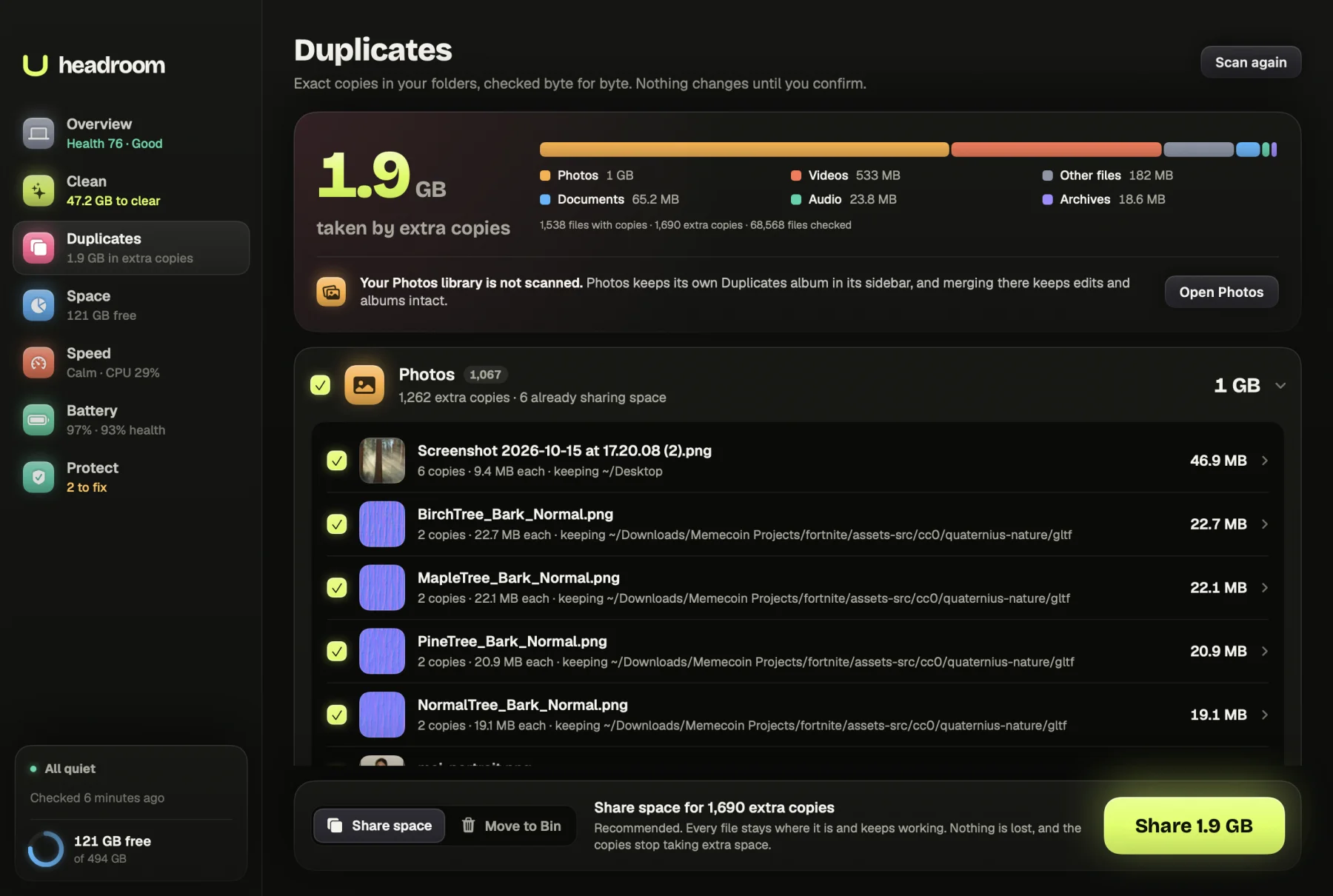
Headroom's Duplicates tab looks through Desktop, Documents, Downloads, Movies, Music and Pictures and only groups files whose contents match byte for byte. It leaves your Photos library to Photos' own Duplicates view. For each set you pick the copy to keep, then choose what happens to the others. Share space turns the extras into APFS clones, so every file stays where it is and keeps working, but the set takes the space of one. Move to Bin removes the extras in a way you can undo. A separate view groups similar photos for you to review by eye, with nothing ticked for you.
The scan is free and shows how much space each set costs. The $19 one-time licence turns on sharing and moving, on up to three Macs. Download Headroom.
Questions
Does macOS have a built-in duplicate file finder?
Not for general files. Photos can find and merge duplicate photos and videos, and Music can show duplicate songs, but for documents and downloads you need a Finder search, Terminal or a separate app.
How can I tell if two files are exact duplicates?
Compare their contents, not their names. In Terminal, run shasum -a 256 followed by both file paths. If the two long codes match, the files are identical byte for byte.
Why didn't deleting duplicates free much space?
On an APFS disk, a copy made with Finder's Duplicate command is a clone that shares storage with the original until one of them changes. Deleting a clone frees almost nothing, even though Finder shows it at full size.
Is it safe to delete duplicate photos in the Photos app?
Yes, if you use the Duplicates view under Utilities. Photos merges each set into a single item and moves the extras to Recently Deleted, where you can recover them for 30 days.
Should I delete duplicate files inside app or code folders?
No. Identical files inside app bundles, media libraries, node_modules and git folders are normal, and removing them can break things. Stick to your own folders, such as Desktop, Documents and Downloads.