Mac running slow? How to find the cause and fix it
Find out why your Mac is slow in five minutes with Activity Monitor: CPU hogs, memory pressure, a full disk or heat, and the fix for each.
A slow Mac almost always comes down to one of four things: a process using a lot of processor time, more apps open than the memory can comfortably hold, a startup disk that is nearly full, or heat making macOS slow the processor down. Activity Monitor, which is already on your Mac, tells you which one in a few minutes. The fix is usually simple: quit one app, free some space, or restart.
This guide walks through each cause in the order that finds the answer fastest, with the exact places to look on macOS 15 Sequoia and notes for macOS 14 Sonoma where anything differs.
Start with the two quick wins
Before you dig in, do the two things that fix a surprising number of slow Macs.
Restart. If your Mac has been running for weeks, a restart clears swap, ends processes that have got stuck and gives leaky apps a fresh start. Choose Apple menu > Restart. You can check how long it has been since the last restart in Terminal:
uptime
This prints the current time, how long the Mac has been up and the load averages. It changes nothing.
Install updates. Choose Apple menu > System Settings > General > Software Update. Bug fixes in macOS and in your apps regularly fix performance problems.
One thing to know: for a while after a major macOS update, your Mac re-indexes files for Spotlight and re-analyses your photo library. It can feel slow for a day or so. That is normal and it settles down on its own.
Step 1: find what is using the processor
If the Mac is still slow after a restart, find out what is busy.
- Open Activity Monitor. Press Command-Space, type Activity Monitor and press Return. It also lives in Applications > Utilities.
- Click the CPU tab at the top of the window.
- Choose View > All Processes so nothing is hidden.
- Click the % CPU column heading so the busiest processes sit at the top.
- Watch the list for a minute. A process that stays near the top while you are not using it is your suspect.
A few things help you read the list:
- % CPU can go above 100. Each processor core counts as 100 percent, so a process using two cores fully shows about 200.
- The bottom of the window splits total use into System (macOS itself), User (apps you opened and what they started) and Idle (unused capacity). Lots of idle means the processor is not your problem.
- Process names are not always obvious. Browser tabs show up as helper processes such as "Google Chrome Helper (Renderer)" or "Safari Web Content". WindowServer draws everything on screen and gets busier with more displays and more open windows.
Some common busy processes and what they mean:
| Process | What it is | What to do |
|---|---|---|
| mds_stores, mdworker | Spotlight indexing | Leave it, it finishes on its own |
| backupd | Time Machine backup | Let it finish or pause the backup |
| photoanalysisd | Photos analysing your library | Leave it, it runs mostly when the Mac is idle |
| bird | iCloud Drive syncing | Wait for the sync to complete |
| kernel_task | macOS managing heat | See Step 4 |
Quit the culprit
- Select the process in Activity Monitor.
- Click the Stop button (the X in a circle) in the toolbar.
- Click Quit. If the app does not respond, use Force Quit instead.
Quit asks the app to close normally so it can save your work. Force Quit closes it immediately and anything unsaved is lost. Only quit apps and processes you recognise. Many system processes restart themselves straight away, and quitting the wrong one can log you out.
The same check in Terminal
top -l 2 -o cpu -n 10 -stats pid,command,cpu
This takes two snapshots and lists the ten busiest processes by CPU. Read the second block: the first one has no earlier sample to compare against, so its CPU figures show zero. The command only reads information.
Step 2: check memory pressure
Click the Memory tab in Activity Monitor and look at the Memory Pressure graph at the bottom.
- Green: memory is fine, even if "Memory Used" looks nearly full.
- Yellow: macOS is compressing a lot of memory to make room. Things still work, but you are close to the limit.
- Red: macOS is moving memory out to the disk (swap) and you will feel it as lag and spinning cursors.
Apple's guide to checking whether your Mac needs more RAM uses the same three colours.
If the graph is yellow or red, sort the list by the Memory column and quit the biggest apps you are not using. Browsers with dozens of tabs are the usual cause. If you want to understand what compressed memory, swap and cached files mean, read memory pressure on Mac explained.
Step 3: check how much disk space is free
macOS needs free space on the startup disk to work well. Swap files, caches and software updates all need room, and when the disk is nearly full, everything slows down.
- Choose Apple menu > System Settings.
- Click General, then Storage.
- Look at the bar at the top and the amount available.
There is no official figure, but as a rule of thumb keep at least 10 to 15 percent of the disk free, and more if you work with large video or photo libraries.
To check from Terminal:
diskutil info / | grep "Container Free Space"
This prints the free space in the APFS container that holds your startup disk. It is a more reliable number than the "Avail" column of df -h, which can look odd on modern macOS because the system volume is sealed and shares its container with your data. The command only reads.
If space is tight, the complete guide to freeing up space on Mac covers the safe places to clear first.
Step 4: check for heat
When the processor gets too hot, macOS slows it down to protect it. In Activity Monitor this shows up as kernel_task using a large share of CPU. Apple explains that kernel_task is managing processor temperature and is not the source of the heat itself, so the fix is to find the app that is working hard.
You can ask macOS whether it has recorded any thermal limits:
pmset -g therm
On a Mac that is not being held back, this reports that no thermal or performance warning level has been recorded. It only reads.
To keep temperatures down:
- Use the Mac on a hard, flat surface, not a bed, sofa or lap blanket that blocks airflow.
- Keep vents clear of dust if your model has them.
- Close apps that keep the processor busy in the background, such as video exports, games or a stuck browser tab.
A MacBook Air has no fan. It is quiet, but during long heavy tasks it lowers its speed to stay cool. That is expected behaviour, not a fault.
Step 5: trim what starts when you log in
Apps that open at login and helpers that run in the background use memory and processor time from the moment you sign in, often for things you never use.
- Choose Apple menu > System Settings > General > Login Items & Extensions. On macOS 14 the pane is called Login Items.
- Under Open at Login, select apps you don't need straight away and click the remove button (−).
- Under Allow in the Background, switch off helpers for apps you no longer use.
Both changes are reversible. For a full walkthrough, including leftover launch agents from apps you have already deleted, see how to remove login items on Mac.
Step 6: look at your browser
A browser is often the heaviest app on a Mac. Each tab is its own process, and extensions run on every page you visit.
- Close tabs you are keeping "for later". A bookmark folder costs nothing.
- Remove extensions you don't use. In Safari, choose Safari > Settings > Extensions. In Chrome, go to
chrome://extensions. - Chrome has its own task manager under Window > Task Manager, which shows exactly which tab or extension is using memory and CPU.
When the problem is the hardware
If memory pressure is red during your normal day, with only the apps you actually need open, your Mac does not have enough memory for that workload. On Apple silicon Macs, memory is part of the chip and cannot be added later. To check what your Mac has, hold the Option key, choose Apple menu > System Information and look under Memory.
Disk errors can also cause slowdowns. Apple's guide if your Mac runs slowly suggests checking the disk with Disk Utility:
- Open Disk Utility from Applications > Utilities.
- Select your startup volume in the sidebar.
- Click First Aid, then Run.
First Aid checks the disk and repairs what it can. It does not delete your files.
What does not help
Be wary of apps that promise to "boost" or "speed up" your Mac by freeing RAM. Spare memory that macOS has filled with cached files is not wasted: it makes apps and documents open faster. Forcing that cache out gives you a nicer number on screen and a slower Mac for the next few minutes. The things that help are boring: quit what you don't need, restart now and then, keep disk space free and keep macOS up to date.
A faster way to watch your Mac
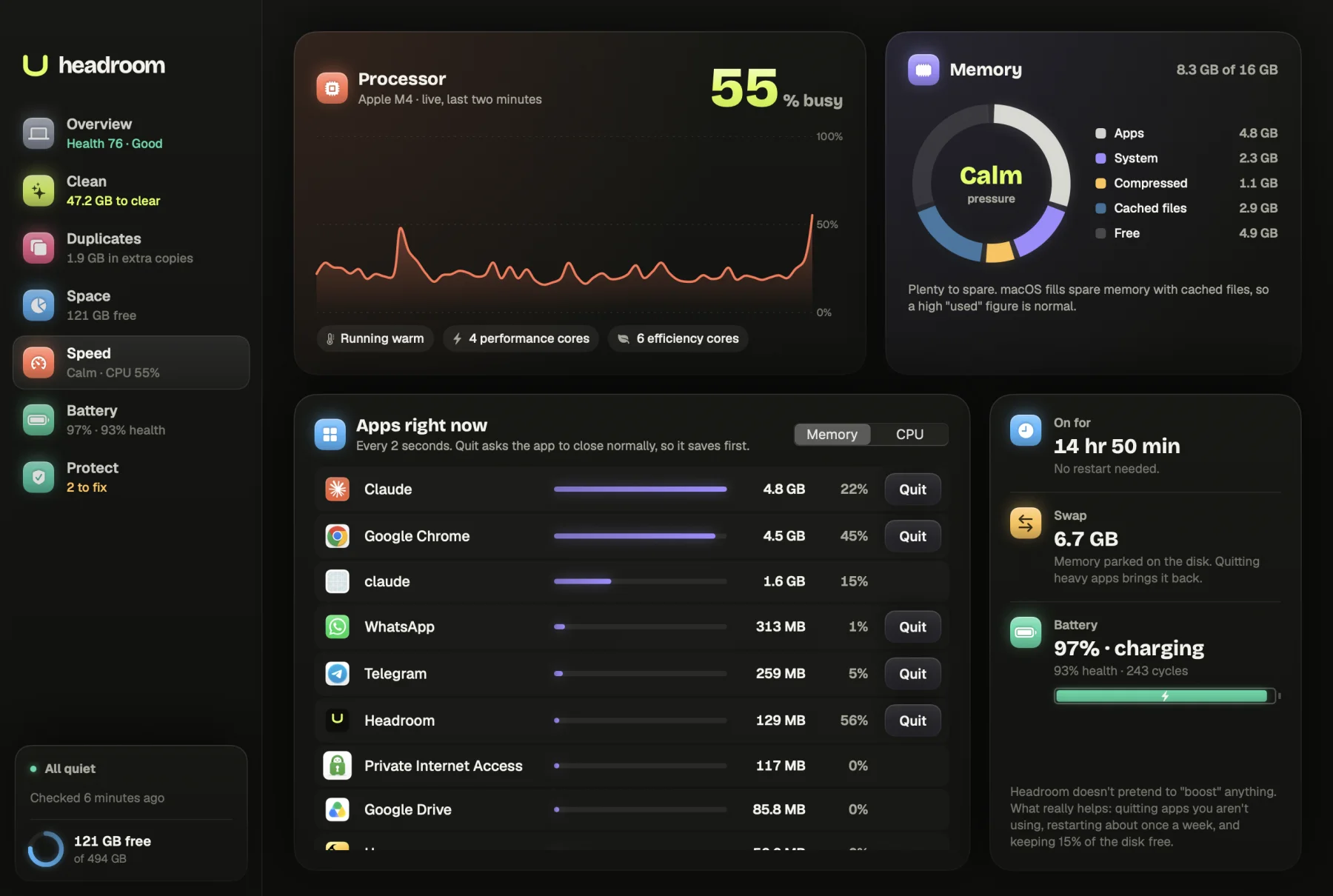
Headroom's Speed screen puts the useful parts of this guide in one view: live CPU use, memory pressure and swap, the apps using the most, and a Quit button that asks each app to close normally so it saves first. It updates every two seconds and costs nothing to use, because the Speed screen is part of the free download.
If the slowdown turns out to be a full disk, the free scan also shows how much Clean can safely recover from caches, logs and old build folders. The $19 one-time licence, for up to three Macs, lets you clear them. See the price or download Headroom.
Quick checklist
- Restart if the Mac has been up for weeks.
- Install macOS and app updates.
- Activity Monitor > CPU: quit anything you don't need at the top.
- Activity Monitor > Memory: if pressure is yellow or red, quit the biggest apps.
- System Settings > General > Storage: keep a healthy amount free.
- Watch for kernel_task and give the Mac room to breathe.
- Trim login items and background helpers.
Questions
Why is my Mac so slow all of a sudden?
A sudden slowdown is usually one process working hard: a browser tab, a sync or backup, Spotlight indexing after an update, or an app stuck in a loop. Open Activity Monitor, sort the CPU tab by % CPU and quit whatever sits at the top if you don't need it.
Does restarting a Mac make it faster?
Often, yes. A restart clears swap, ends stuck processes and gives apps that slowly leak memory a fresh start. If your Mac has been up for weeks, restart before you try anything else.
Can a full disk slow down a Mac?
Yes. macOS needs free space for swap, caches and updates, so a nearly full startup disk makes everything feel sluggish. Check System Settings > General > Storage and clear space if you are close to full.
What is kernel_task and why is it using so much CPU?
kernel_task is part of macOS. When the processor gets too hot, it holds back CPU time from busy apps to bring the temperature down. It is a symptom of heat, not the cause, so look for the app that is working hard.
Do Mac cleaner or RAM booster apps make a Mac faster?
Not in any lasting way. macOS already manages memory well, and forcing it to empty its file cache can make apps slower to reopen. Quitting what you don't need and keeping disk space free does more.