Login items on Mac: remove startup apps and agents
Stop apps opening at login, switch off background items and safely remove leftover launch agents on macOS 15 Sequoia and macOS 14 Sonoma.
To remove login items on a Mac, open System Settings > General > Login Items & Extensions, select an app under Open at Login and click the remove button (−). Background helpers are listed underneath, in Allow in the Background, where each one has its own switch. On macOS 14 Sonoma the pane is simply called Login Items.
That covers most cases. This guide also explains what each kind of startup item is, how to see everything from Terminal, and how to safely remove the leftover launch agents that apps leave behind after you delete them.
Three kinds of things that start on their own
macOS can start software for you in three ways, and the settings pane groups them slightly differently.
Open at Login items are the apps, documents and server connections that open when you sign in. You see them: a window appears or an icon shows up in the menu bar.
Background items are helpers that run without a window: update checkers, sync services, menu bar helpers and drivers. Modern apps register these through Apple's Service Management framework, and they appear under Allow in the Background.
Launch agents and launch daemons are the older, file-based way to do the same thing. A small property list (.plist) file in a LaunchAgents or LaunchDaemons folder tells macOS what to run and when. Agents run for one user after login. Daemons run for the whole Mac, often before anyone logs in.
Since macOS 13 Ventura, a system Apple calls Background Task Management keeps track of all three. When an app adds a background item, macOS shows you a notification, and every item, including the old file-based ones, appears in System Settings with a switch. Apple describes this in its deployment guide to managing login items and background tasks.
Remove apps from Open at Login
- Choose Apple menu > System Settings.
- Click General in the sidebar.
- Click Login Items & Extensions. On macOS 14, click Login Items.
- Under Open at Login, select the app you want to stop.
- Click the remove button (−) below the list.
The app is not deleted. It just stops opening when you sign in, and you can add it back with the add button (+). Apple's guide to changing Login Items & Extensions settings covers the same pane, including the warning triangle that marks an item whose file has been moved or deleted.
If an app keeps coming back, it is adding itself. Open the app, go to its own Settings or Preferences, and switch off its "Open at login" or "Launch at startup" option.
Switch off background items
- In the same Login Items & Extensions pane, scroll to Allow in the Background.
- Find the app or developer you want to stop.
- Turn its switch off. For system-wide items, macOS may ask for your password.
Newer versions of macOS label this section App Background Activity, but it works the same way. The helper stops running, but nothing is deleted, so you can switch it back on at any time. Some apps depend on their helper for features you might want, so think before switching off:
- Keep: VPN clients you use, backup tools, drivers for docks, displays and printers, and security software you rely on.
- Usually safe to switch off: update checkers for apps you rarely open, helpers for apps you no longer use, and menu bar tools you never click.
One label worth noticing: an entry described as an item from an unidentified developer is one macOS can't tie to a known, signed developer. That doesn't make it harmful, but if you don't recognise it, look into it before leaving it on. The guide to checking a Mac for malware explains what to look for.
See every startup item in Terminal
The settings pane groups items by app, which can hide the detail. These commands show what is actually there. All of them only read.
The full Background Task Management list
sfltool dumpbtm
This prints every login item, agent and daemon macOS knows about, with the developer name, team identifier, type and whether it is enabled. The output is long. Each record looks something like this:
                 Name: Example Helper
       Developer Name: Example Ltd
      Team Identifier: ABCDE12345
                 Type: legacy agent (0x10008)
          Disposition: [enabled, allowed, visible, notified] (0xb)
"Legacy agent" and "legacy daemon" mean a file-based plist. "Disposition" tells you whether it is enabled and allowed. On macOS 15 it runs without administrator rights.
Don't confuse it with sfltool resetbtm. That command clears every approval Background Task Management has stored and is meant for testing. You don't need it to remove an item.
The launch agent and daemon folders
ls -la ~/Library/LaunchAgents /Library/LaunchAgents /Library/LaunchDaemons
This lists the plist files in the three folders that third-party software uses:
| Folder | Runs for | Changing it needs |
|---|---|---|
~/Library/LaunchAgents |
You, after you log in | Nothing extra |
/Library/LaunchAgents |
Every user, after they log in | Administrator password |
/Library/LaunchDaemons |
The whole Mac, at startup | Administrator password |
Apple's own agents and daemons live in /System/Library, which System Integrity Protection keeps read-only. You can leave that folder alone.
What a plist actually runs
plutil -p ~/Library/LaunchAgents/com.example.helper.plist
Replace the file name with one from your list. This prints the file in a readable form. Look at Label (its name), ProgramArguments or Program (what it runs), and RunAtLoad or KeepAlive (whether it starts at login and restarts when it quits).
What is loaded right now
launchctl list | grep -v com.apple
This lists the jobs loaded in your login session, minus Apple's own. A number in the first column is the process ID of a job that is running now.
Remove a leftover launch agent safely
When you drag an app to the Bin, its launch agent can stay behind and keep trying to run something that no longer exists. Here is the safe way to clear it out, using a move instead of a delete so you can undo it.
- First, check Login Items & Extensions and switch the item off there. That is often enough.
- If the file is still there and you want it gone, make a folder on your Desktop called Disabled launch agents.
- In Finder, choose Go > Go to Folder, type
~/Library/LaunchAgentsand press Return. - Find the plist whose name matches the app or developer. Names usually look like
com.developer.product.plist. - Drag it into your Disabled launch agents folder.
- Restart your Mac, or log out and back in.
For files in /Library/LaunchAgents or /Library/LaunchDaemons, Finder will ask for your administrator password when you move them.
If you want to stop an agent immediately without restarting, unload it before you move it:
launchctl bootout gui/$(id -u) ~/Library/LaunchAgents/com.example.helper.plist
Warning: this stops the job straight away. It doesn't delete the file. If you change your mind, move the file back and load it again with launchctl bootstrap gui/$(id -u) followed by the same path.
Only remove plists you can tie to an app you have uninstalled or a service you don't want. If a name means nothing to you, look up the developer from the sfltool dumpbtm output before touching it. Leave anything beginning with com.apple alone.
Signs a startup item needs a closer look
Most startup items are dull and harmless. A few patterns are worth investigating:
- A label made of random letters, such as
com.xkqzvtrpmw, rather than a developer and product name. - A program path inside a hidden folder,
/tmp, or/Users/Shared. - Program arguments that run a shell with a long encoded string, or download and run a script.
- An item for software you are sure you never installed.
None of these proves something is malicious, but each one is unusual for a normal app. If you find one, switch it off, keep the file, and follow the steps in how to check your Mac for malware. Fewer background helpers also means less work for the processor and battery, which ties in with why a Mac runs slowly.
See every startup item in one list with Headroom
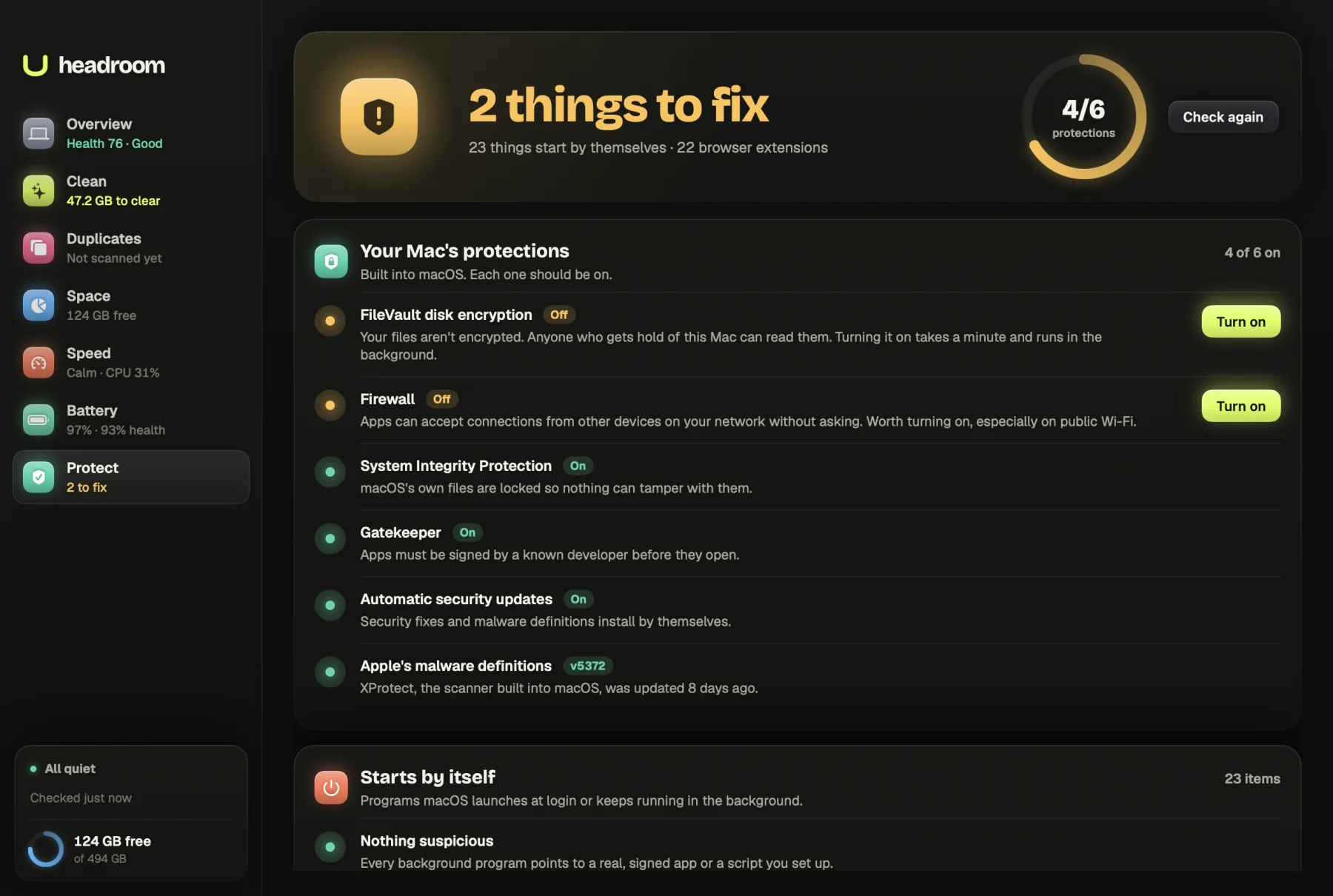
Headroom's Protect screen reads all three LaunchAgents and LaunchDaemons folders and lists every item in one place, with the full command each one runs and whether that program is signed by a known developer. It flags the patterns above and decodes scripts hidden inside startup commands so you can read what they do.
The scan is free. With the $19 one-time licence, for up to three Macs, Turn off stops one of your own startup items and moves its file into a dated quarantine folder in Downloads with a note of what it ran, so you keep the evidence and can put it back. For system-wide items it tells you the exact file to remove with your password. See the price or download Headroom.
Questions
How do I stop apps opening when my Mac starts up?
Open System Settings > General > Login Items & Extensions (Login Items on macOS 14), select the app under Open at Login and click the remove button. Also check the app's own settings for an 'open at login' option, or it may add itself back.
Is it safe to turn off items under Allow in the Background?
Yes, it is reversible. The helper stops running in the background, so the app may lose features such as automatic updates, syncing or a menu bar icon. Switch it back on if you miss something.
Why does an item still appear after I deleted the app?
Some apps install a launch agent or daemon file in a Library folder that stays behind when you drag the app to the Bin. Switch it off in Login Items & Extensions, or move the leftover file out of the LaunchAgents folder and restart.
What is the difference between a launch agent and a launch daemon?
A launch agent runs for one user after they log in, and lives in a LaunchAgents folder. A launch daemon runs for the whole Mac, often before anyone logs in, and lives in /Library/LaunchDaemons. Changing daemons needs an administrator password.