Check Mac for malware: built-in protection and safe checks
How macOS already guards against malware, how to confirm XProtect and Gatekeeper are on, and the calm manual checks that find what slips through.
To check a Mac for malware, start by confirming that macOS's own protections are switched on and up to date, then review what starts automatically, what is installed and what has changed in your browser. macOS already scans apps for known malware with XProtect and blocks unsigned or flagged software with Gatekeeper, so on an up-to-date Mac a manual check is mostly about spotting the few things those layers can't judge for you.
This guide is deliberately calm. Most Macs that feel "wrong" are not infected, and the checks below are safe: they read settings and lists, and the only changes are ones you choose to make.
What macOS already does for you
Apple's Platform Security guide describes three layers of malware defence: stop malware launching, block it if it arrives, and remove it if it has run. In practice that is four pieces working together.
Gatekeeper and notarisation. Software from outside the App Store has to be signed by a registered developer and, by default, notarised: submitted to Apple and scanned for known malicious content before release. The first time you open a downloaded app, Gatekeeper checks it is from an identified developer, notarised and unaltered, and asks for your approval. Apple can also revoke a notarisation if a developer turns out to be malicious, and macOS checks for those revocations in the background. Apple explains this in Gatekeeper and runtime protection.
XProtect. This is the antivirus built into macOS. It uses signature rules, written in a format called YARA, that are broader than simple file fingerprints, so they also catch variants. It checks apps when they first launch, when they have changed on disk and when the signatures update. Apple updates XProtect separately from macOS, and checks for updates daily by default. When it finds known malware, it blocks it, moves it to the Bin and tells you.
Background Task Management. Since macOS 13, every login item, launch agent and launch daemon is tracked. When an app adds one, macOS sends a notification, and you can see and switch off each one in System Settings.
System Integrity Protection (SIP). SIP keeps macOS's own files read-only, even to an administrator, so malware can't quietly replace system components.
Signs worth a closer look
These are the signs that genuinely point to unwanted software:
- Your browser's homepage, new tab page or search engine changed and keeps changing back.
- Browser extensions you don't remember adding.
- Pop-ups telling you to install a "Flash update", a "cleaner" or a "security scan".
- A configuration profile you didn't install on a personal Mac.
- New login items or background items for software you don't recognise.
- An administrator password prompt for something you didn't open.
And these are usually not malware: a Mac that slows down after a macOS update, a warm laptop and a busy fan during heavy work, or one app that crashes. For those, see why your Mac is slow.
Step 1: make sure the protections are on
Automatic security updates
- Choose Apple menu > System Settings > General > Software Update.
- Click the info button (ⓘ) next to Automatic Updates.
- Make sure Install Security Responses and system files is on. This is what delivers XProtect updates.
Gatekeeper
- Open System Settings > Privacy & Security.
- Scroll down to Security.
- Under Allow applications from, choose App Store or App Store & Known Developers.
Apple's guide to safely opening apps on your Mac explains both options.
Check from Terminal
These commands only read status. None of them change anything.
spctl --status
Prints assessments enabled when Gatekeeper is on.
csrutil status
Prints System Integrity Protection status: enabled. when SIP is on. If it says disabled and you didn't turn it off yourself, find out why.
xprotect version
xprotect status
On macOS 15 and later, the first prints the installed XProtect version and when it was installed. The second confirms that launch scans and background scans are enabled. Avoid xprotect update here: it is the one subcommand that changes something, and macOS already updates XProtect for you.
On any recent macOS, this lists XProtect updates from the install history:
system_profiler SPInstallHistoryDataType | grep -A4 XProtect
If the newest entry is weeks old, check Software Update and your internet connection.
FileVault and the firewall
Neither stops malware directly, but both are worth having on. FileVault encrypts your disk so a lost or stolen Mac doesn't expose your files: System Settings > Privacy & Security > FileVault. The firewall blocks unwanted incoming connections: System Settings > Network > Firewall.
Step 2: review what starts automatically
Unwanted software almost always sets itself up to run again after a restart, so this is the most useful check.
- Open System Settings > General > Login Items & Extensions. On macOS 14, click Login Items.
- Read the Open at Login list and the Allow in the Background list.
- Note anything you don't recognise, or anything listed as an item from an unidentified developer.
For the full picture, including the developer's name and team identifier for each item, run this read-only command:
sfltool dumpbtm
Then look at the files in the launch agent and daemon folders:
ls -la ~/Library/LaunchAgents /Library/LaunchAgents /Library/LaunchDaemons
Things that deserve attention: labels made of random letters, programs inside hidden folders or /tmp, commands that decode long strings or download and run scripts, and items for software you never installed. The guide to removing login items on Mac shows how to read a plist and switch an item off safely without deleting the evidence.
Step 3: check your apps
Open your Applications folder and sort by Date Added. Look for anything you don't remember installing, especially around the time a problem started.
To ask Gatekeeper about a particular app:
spctl -a -vv /Applications/AppName.app
Replace AppName with the app's name. It only reads. A trusted app returns accepted, with a source such as Notarized Developer ID, Mac App Store or Apple System, and the developer's name.
A rejected result doesn't automatically mean malware. Apps you built yourself, some open-source tools and old apps can all be rejected because they aren't notarised. It means you should know where that app came from. For a large app this check can take a minute.
To see who signed an app:
codesign -dv --verbose=2 /Applications/AppName.app
The Authority lines show the signing certificate, and TeamIdentifier is the developer's Apple team ID. Remote access tools such as TeamViewer or AnyDesk are legitimate, but if you find one you didn't install, treat it seriously: it can let someone else control your Mac.
Step 4: check your browsers
Browser hijackers are the most common unwanted software on Macs.
- Safari: choose Safari > Settings > Extensions and turn off or uninstall anything you don't use. Then check General for the homepage and Search for the search engine.
- Chrome: go to
chrome://extensions, remove anything unfamiliar, then check Settings > Search engine and On start-up. - Firefox: go to
about:addons.
Pay extra attention to extensions that can read and change data on every website. Many need that to work, but it is also exactly what a hijacker asks for.
Step 5: check configuration profiles
A configuration profile can change settings such as proxies, DNS and certificates. They are normal on work and school Macs. On a personal Mac, you probably have none.
- On macOS 15, open System Settings > General > Device Management.
- On macOS 14, open System Settings > Privacy & Security and scroll down to Profiles.
- Double-click a profile to see what it does. To remove one, select it and click the remove button (−).
From Terminal:
profiles list
profiles status -type enrollment
The first lists installed profiles. The second shows whether the Mac is enrolled in device management. Both only read.
Step 6: check shell startup files and scheduled jobs
If you use Terminal, a line added to a shell startup file runs every time you open a new window.
crontab -l
Lists your scheduled cron jobs. no crontab for followed by your username means there are none.
cat ~/.zshrc ~/.zprofile 2>/dev/null
Prints your shell startup files. Look for lines you didn't add, particularly ones that download something with curl and pipe it into a shell, or decode a long base64 string.
If you find something
Take it one step at a time:
- Quit the app if it is running, then move it from Applications to the Bin.
- Switch off its items in Login Items & Extensions.
- Remove any extension or profile it added, and reset your browser's homepage and search engine.
- Install all available updates.
- If you typed passwords into anything suspicious, change them from a different device you trust, starting with your email and Apple Account.
If you are still unsure, back up your personal files, then reinstall macOS or contact Apple Support. Be wary of "cleaner" or "antivirus" apps advertised in pop-ups: that advert is often the problem itself. Apple's page on protecting your Mac from malware covers the basic safeguards.
Do you need antivirus?
For most people at home, no extra product is required. XProtect, Gatekeeper, notarisation and automatic Security Responses handle the known threats, and the checks above cover what is left: things you agreed to install that you shouldn't have. Organisations often still run endpoint security software for monitoring and compliance, and macOS 15 lets those tools see when someone bypasses Gatekeeper. That is a policy choice, not a sign that the Mac is unprotected.
The best protection is habit. Install software from the App Store or the developer's own site, keep automatic updates on and think twice before clicking Open Anyway. Since macOS 15, you can't skip Gatekeeper with a Control-click any more: you have to approve the app in Privacy & Security, which is a useful pause.
Run all six checks at once
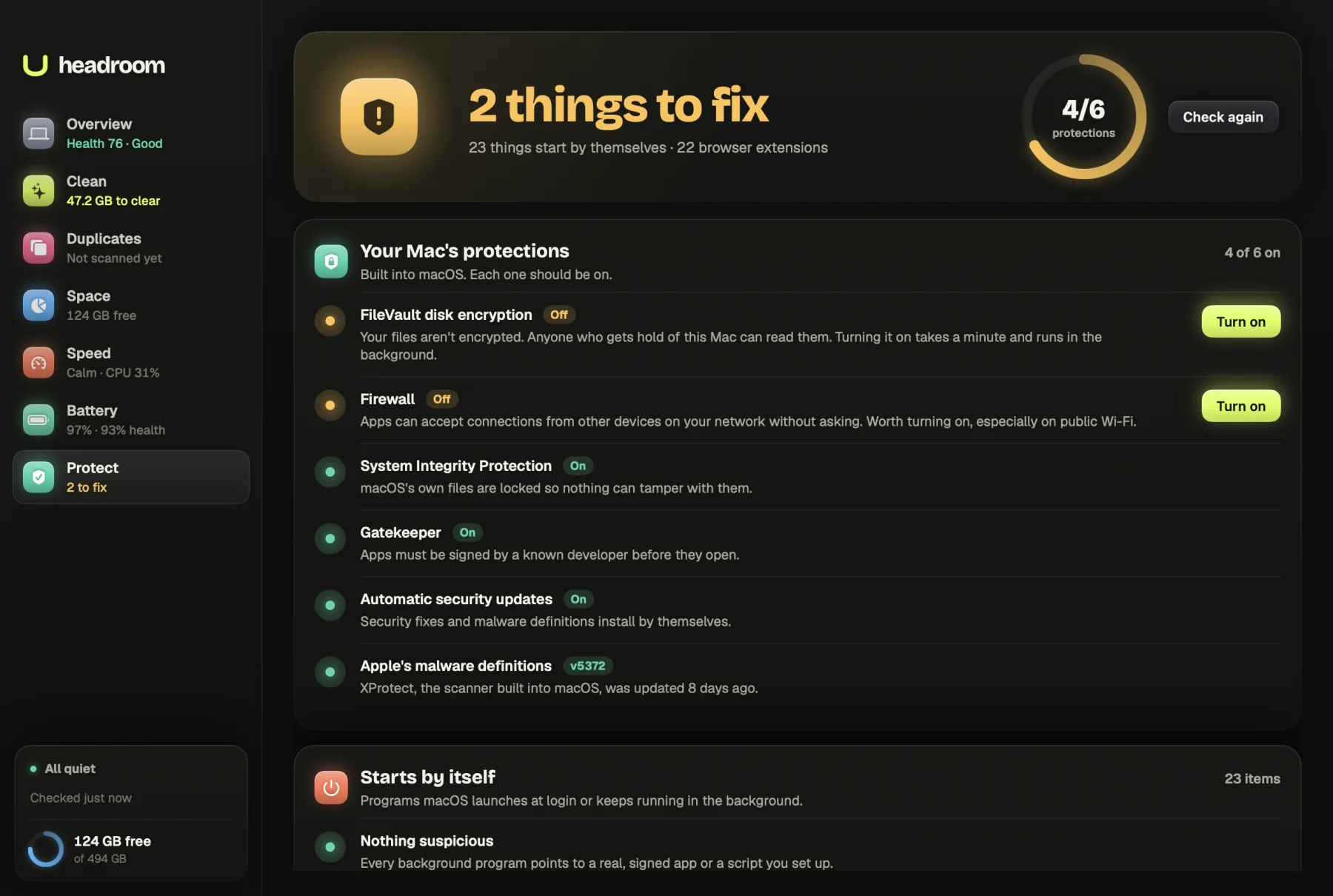
Headroom's Protect screen runs these checks in one pass. It shows the status of FileVault, the firewall, Gatekeeper, SIP, automatic security updates and how recently XProtect updated. It runs every app in Applications through Gatekeeper, lists every launch agent and daemon with the command it runs, decodes suspicious startup scripts, and reads your shell startup files, crontab, Chromium-based browser extensions and configuration profiles.
Headroom isn't an antivirus and doesn't replace XProtect. It shows you what to look at. The scan is free. The $19 one-time licence, for up to three Macs, adds the fixes, such as turning off a startup item while keeping its file in a quarantine folder as evidence. See the price or download Headroom.
Questions
Does a Mac have built-in antivirus?
Yes. XProtect is built into macOS and checks apps against Apple's malware signatures when they first open, when they change and when the signatures update. Apple updates those signatures separately from macOS, so they stay current without a full system update.
How do I know if my Mac has malware?
Look for changes you didn't make: a new browser homepage or search engine, extensions you didn't add, unfamiliar login items or background items, or a configuration profile you don't recognise. A slow Mac or a noisy fan on its own is rarely malware.
Do I need antivirus software for my Mac?
For most people, macOS's own protections, automatic security updates and care about what you install cover the common threats. Workplaces may still require security software for their own policies or compliance.
How do I check which version of XProtect I have?
On macOS 15 and later, run xprotect version in Terminal. On any recent macOS, you can also open System Information, click Installations under Software and look for the latest XProtect entries.
Is it safe to open an app that macOS blocked?
Only if you are sure where it came from and that it hasn't been tampered with. macOS blocks apps that aren't notarised or that Apple has flagged, so the warning is worth taking seriously, especially for anything you got from a link or a pop-up.