Mac battery health: check capacity and cycle count
Check your MacBook's battery health, maximum capacity and cycle count in System Settings or Terminal, and learn what the numbers mean for replacement.
To check your Mac's battery health, open System Settings, click Battery, then click the info button (ⓘ) next to Battery Health. You will see the condition (Normal or Service Recommended) and the Maximum Capacity, which compares what the battery holds today with what it held when new. The cycle count lives in System Information under Power.
Above 80 percent and Normal means the battery is healthy. The rest of this guide shows every place to read these numbers, what they mean, and how to tell a worn battery from one that is simply being drained by an app.
Check battery health in System Settings
These steps are for macOS 15 Sequoia and work the same way on macOS 14 Sonoma.
- Choose Apple menu > System Settings.
- Click Battery in the sidebar.
- Find Battery Health and read the condition next to it.
- Click the info button (ⓘ) next to it to see Maximum Capacity and the Optimised Battery Charging switch.
Apple's page on checking the condition of your Mac laptop's battery describes the two conditions:
- Normal: the battery is working as expected.
- Service Recommended: the battery holds noticeably less charge than when new, or isn't working normally. It is still safe to use.
Find the cycle count
Battery Settings does not show the cycle count. System Information does.
- Hold the Option key and choose Apple menu > System Information.
- Click Power in the sidebar, under Hardware.
- Look under Battery Information > Health Information for Cycle Count, Condition and Maximum Capacity.
A charge cycle is a full battery's worth of use, not one plug-in. Using half the battery on Monday and half on Tuesday adds up to one cycle. Apple lists the rated limit for each model on its page to determine battery cycle count for Mac laptops. Recent MacBook Air and MacBook Pro models are rated for 1,000 cycles. Reaching that number doesn't stop the battery working; it is the point where Apple expects capacity to be around 80 percent.
Check battery health in Terminal
If you prefer the command line, these commands read the same data. None of them change any settings.
system_profiler SPPowerDataType | grep -E "Cycle Count|Condition|Maximum Capacity"
This prints the three health figures from System Information in one go:
          Cycle Count: 243
          Condition: Normal
          Maximum Capacity: 93%
Run system_profiler SPPowerDataType without the grep to also see charger details: whether a charger is connected, its name and the wattage reported for the connection. That is a quick way to confirm a slow charge isn't down to a low-wattage adapter.
pmset -g batt
This shows the current charge percentage, whether the Mac is running on battery or the power adapter, and whether it is charging, charged or on hold.
For the raw values the battery controller reports, there is the I/O Registry:
ioreg -rn AppleSmartBattery | grep -E '"(CycleCount|DesignCapacity|AppleRawMaxCapacity|NominalChargeCapacity)"'
These figures are in milliamp-hours. Don't be surprised if dividing one by another lands a few points away from the Maximum Capacity in Settings. macOS doesn't simply divide two of these numbers, and the Settings figure is the one Apple uses when it judges whether a battery needs service.
What the numbers mean
Maximum Capacity
This is the battery's current full charge compared with its capacity when new. It falls slowly as the battery ages, so a full charge lasts a little less time. Apple's page about battery health management on Apple silicon Mac laptops explains that a normal battery is designed to keep up to 80 percent of its original capacity at its maximum cycle count.
Two details catch people out:
- A brand new Mac can show slightly under 100 percent, depending on how long it sat between manufacture and first use.
- The figure can shift after a software update while the Mac recalibrates. Give it a few days of normal use before you read anything into a sudden change.
Condition
Normal is what you want. If it says Service Recommended, Apple's page on what Service Recommended means is clear that you can keep using the Mac. Plan a replacement when the shorter runtime starts to get in your way.
Cycle count
Use this to judge how worn a battery is likely to be, especially when buying a second-hand MacBook. A low count with high capacity is a good sign. A high count with low capacity tells you a replacement is coming.
What macOS already does to protect the battery
Lithium-ion batteries age faster when they are hot and when they sit at full charge for long periods. macOS manages both for you.
Battery health management watches temperature history and charging patterns and can temporarily lower the maximum charge to slow ageing.
Optimised Battery Charging learns your daily routine. When it expects the Mac to stay plugged in for a while, it holds the charge at 80 percent and finishes charging shortly before you usually unplug. When this is happening, the battery menu says Charging On Hold. To check it is on:
- Open System Settings > Battery.
- Click the info button (ⓘ) next to Battery Health.
- Make sure Optimised Battery Charging is switched on.
If you need a full battery sooner, click the battery icon in the menu bar and choose Charge to Full Now. On Apple silicon Macs running macOS Tahoe 26.4 or later, there is also a Charge Limit setting that caps charging at a level you choose. Apple covers both on its page about Optimised Battery Charging and Charge Limit.
You don't need to drain the battery to zero, keep it unplugged, or follow a charging ritual. Plug in when it suits you and let macOS handle the rest.
Worn battery or a battery drain?
If your Mac runs out of charge faster than it used to but Battery Health still says Normal with a high capacity, the battery probably isn't the problem. Something is using more energy.
Check Energy Usage in Battery settings
Open System Settings > Battery. The usage history at the top shows the charge level and screen-on time over the last 24 hours or 10 days, so you can see when the drain happened.
Check Activity Monitor's Energy tab
- Open Activity Monitor from Applications > Utilities.
- Click the Energy tab.
- Sort by Energy Impact to see what is using power right now, or by 12 hr Power for the last half day.
- Check the Preventing Sleep column for apps that keep the Mac awake.
Quit apps you don't need. Browsers with many tabs, video calls, games and apps that sync large files are common culprits.
See what is keeping the Mac awake
pmset -g assertions
This lists every process currently asking macOS not to sleep, such as a video player or a backup. It only reads. If something you don't recognise holds an assertion for hours, that app is worth a closer look.
Low Power Mode
For long days away from a charger, open System Settings > Battery and set Low Power Mode to Only on Battery. The Mac lowers its energy use, and you may notice it is a little slower during heavy work.
Background helpers that start at login also cost battery over a day. See how to remove login items on Mac to switch off the ones you don't use, and why your Mac is slow for finding processes that keep the processor busy.
When to replace the battery
Consider a replacement when any of these is true:
- Battery Health shows Service Recommended.
- Maximum Capacity has dropped below about 80 percent and the runtime no longer covers your day.
- The cycle count is at or beyond the rated limit for your model and you notice shorter runtime.
Book it with Apple or an Apple Authorised Service Provider, which use genuine parts. If your Mac is covered by AppleCare, a battery that has dropped below 80 percent of its original capacity may be replaced at no charge. Check your coverage before you pay.
Your battery at a glance
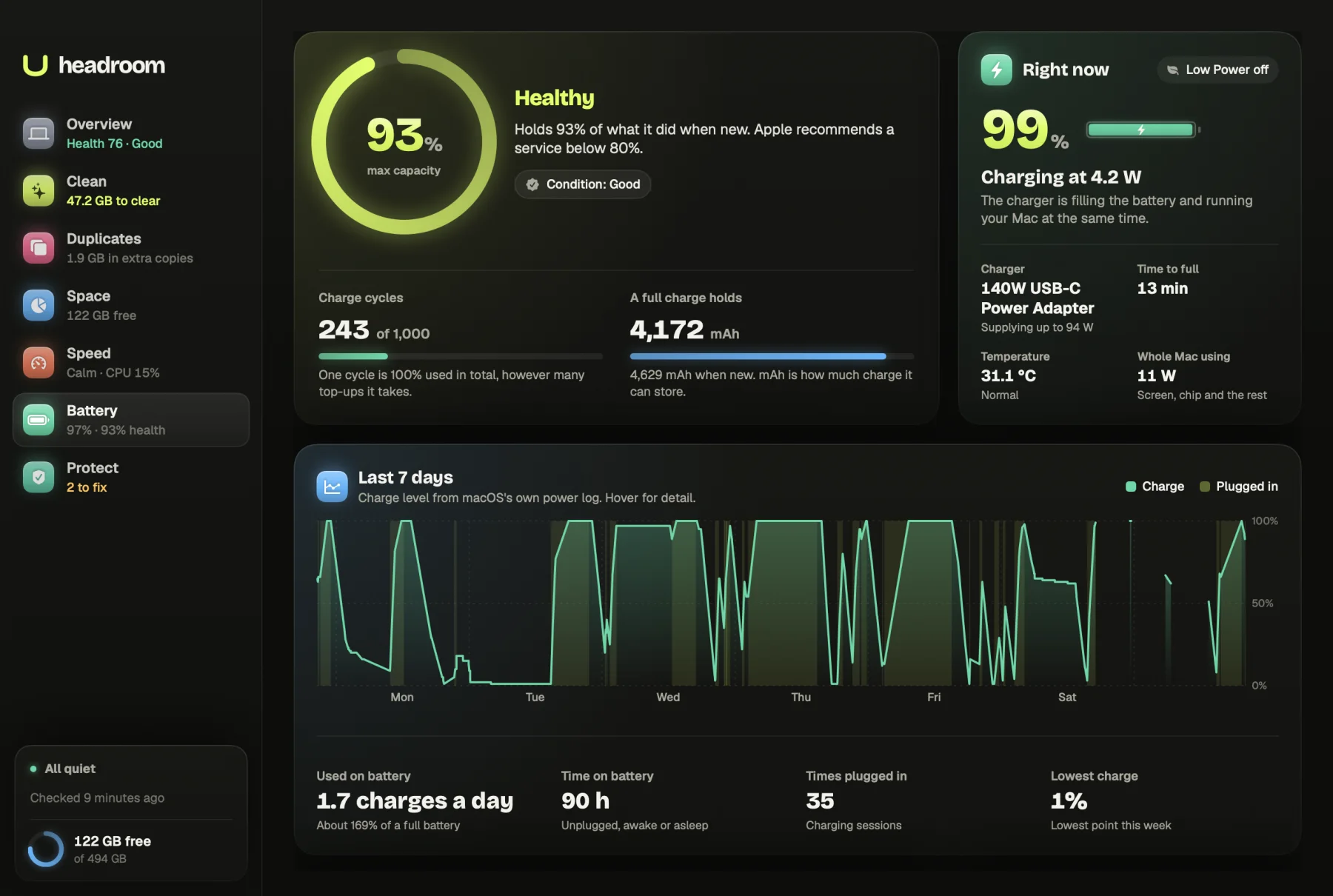
Headroom's Battery screen gathers everything above on one page: maximum capacity, condition, cycle count against your model's rating, the charger that's connected, battery temperature, a seven-day charge history read from macOS's own power log, and which apps are using the most energy. You don't need Settings, System Information and Terminal open side by side.
The Battery screen is free with the download, with no licence needed. The $19 one-time licence, for up to three Macs, adds the clean-up and fix actions in the other screens. See the price or download Headroom.
Questions
What is a good battery health percentage for a MacBook?
Apple designs Mac laptop batteries to keep up to 80 percent of their original capacity at their maximum cycle count. Anything above 80 percent with a condition of Normal is healthy, and the number naturally drifts down with age and use.
How many charge cycles does a MacBook battery last?
Recent MacBook Air and MacBook Pro models are rated for 1,000 cycles. Older models were rated lower. Apple keeps the full list on its cycle count support page.
Does charging my MacBook to 100 percent damage the battery?
Time spent full and warm adds wear, which is why macOS has Optimised Battery Charging. It learns your routine and holds the charge at 80 percent until you usually unplug, so you don't need to manage it by hand.
What does Service Recommended mean on a Mac battery?
It means the battery holds noticeably less charge than when it was new, or it isn't working normally. You can keep using the Mac safely, and get the battery replaced when the shorter runtime starts to matter to you.
Why does my new MacBook show less than 100 percent maximum capacity?
Apple notes that a new Mac can show slightly under 100 percent depending on how long it sat between manufacture and first use. A few points below 100 on a new machine is not a fault.