Delete Xcode DerivedData, old simulators and archives
Free space from Xcode: what DerivedData, simulators, device support and archives hold, which are safe to delete, and the exact steps for each.
Yes, you can delete Xcode's DerivedData folder. It lives at ~/Library/Developer/Xcode/DerivedData, it only holds files Xcode generates from your projects, and Xcode rebuilds it on the next build. Quit Xcode, move the folder to the Bin, empty the Bin, and you get the space back.
DerivedData is often not the biggest part, though. Simulator runtimes, simulator devices, device support files and archives can each grow to many gigabytes, and they need a little more care. This guide covers each one: what it is, how to measure it, and how to remove it without breaking your setup.
Where Xcode keeps its files
Most of the space Xcode uses outside your projects sits in your user Library, plus a shared Library folder for simulator runtimes.
| Location | What it holds | Safe to delete? |
|---|---|---|
~/Library/Developer/Xcode/DerivedData |
Indexes, logs and build products for every project | Yes, rebuilds on the next build |
~/Library/Developer/CoreSimulator/Devices |
Each simulator you have created, with its apps and data | Use Xcode or simctl, not Finder |
/Library/Developer/CoreSimulator |
Simulator runtimes (the iOS, watchOS and other OS images) | Remove in Xcode > Settings > Components |
~/Library/Developer/Xcode/iOS DeviceSupport |
Debug symbols for each device OS version you have connected | Yes, for versions you no longer use |
~/Library/Developer/Xcode/Archives |
Every archive you have built, with its dSYM files | Only archives you never shipped |
~/Library/Developer/Xcode/UserData/Previews |
Simulators used for SwiftUI previews | Yes, with simctl |
Apple documents the DerivedData and Archives defaults on its Xcode locations help page. You can change both in Xcode > Settings > Locations.
Measure before you delete
Open Terminal and run:
du -h -d 1 ~/Library/Developer/Xcode ~/Library/Developer/CoreSimulator 2>/dev/null | sort -h
This lists each folder one level down with its size, smallest first, so the biggest offenders end up at the bottom. It only reads; nothing is changed or removed.
You can also look in Apple menu > System Settings > General > Storage. On a Mac with Xcode installed it can include a Developer row, which you can open with its info button. Apple explains the categories in Change Storage settings on Mac.
Delete DerivedData
DerivedData is the safe, quick win. Apple describes it as project indexes, logs and build products, including intermediate build files. Each project gets its own subfolder named after the project followed by a string of random letters. Swift packages a project depends on are also checked out in there, so Xcode fetches them again afterwards.
In Finder
- Quit Xcode. Deleting these files while Xcode is running can confuse it.
- In Finder, choose Go > Go to Folder, paste
~/Library/Developer/Xcode/DerivedDataand press Return. - Select everything inside, or only the folders for projects you have finished with, and press Command-Delete to move them to the Bin.
- Empty the Bin. As Apple's Free up storage space on Mac article points out, space from files in the Bin only becomes available once you empty it.
In Terminal
macOS 14 Sonoma and later include a trash command that moves items to the Bin, so you can still change your mind:
trash ~/Library/Developer/Xcode/DerivedData
This moves the whole DerivedData folder to the Bin. Xcode creates a fresh one on the next build. Empty the Bin when you are happy.
If you prefer to remove it outright:
rm -rf ~/Library/Developer/Xcode/DerivedData
Warning: rm -rf deletes immediately and skips the Bin. Check the path character by character before you press Return, and quit Xcode first.
What about Clean Build Folder?
Product > Clean Build Folder clears build output for the project you have open. It is the right tool when a single build misbehaves, but it frees far less space than removing DerivedData, and it does nothing for the other projects you have built in the past.
Remove simulators you no longer need
Apple's developer support recommends managing simulators through Xcode's Devices and Simulators window or the simctl tool, rather than changing the CoreSimulator folder yourself.
Delete simulators for missing runtimes
When you update Xcode or remove an old iOS runtime, the simulators built on it stay behind but can no longer run. This command removes them:
xcrun simctl delete unavailable
It deletes every simulator whose runtime is no longer installed, along with the apps and data inside those simulators. Simulators you can still run are left alone.
Delete specific simulators
To see every simulator and its identifier:
xcrun simctl list devices
This only lists. To remove one, copy its identifier (the long string in brackets) and run:
xcrun simctl delete DEVICE_ID
Replace DEVICE_ID with the identifier you copied. Warning: this permanently removes that simulator and everything installed in it, including test accounts and app data. You can also review and remove simulators in Xcode under Window > Devices and Simulators.
Remove simulator runtimes
Runtimes can be the largest items of all, because each one is a complete copy of an OS for the simulator to run. Apple documents the current steps in Downloading and installing additional Xcode components:
- In Xcode, choose Xcode > Settings and click Components in the sidebar. Xcode 15 calls this pane Platforms.
- Look under Other Installed Platforms. Xcode shows how much storage each component would free.
- Click the info button next to a runtime you no longer test on.
- Click Delete in the dialog that appears.
You can download a runtime again later from the same pane if a project needs it. From Terminal, xcrun simctl runtime list shows installed runtimes and xcrun simctl runtime delete followed by an identifier from that list removes one.
SwiftUI preview simulators
SwiftUI previews run in their own set of simulators under ~/Library/Developer/Xcode/UserData/Previews, and delete unavailable on its own does not touch them. Developers on Apple's forums report that this command clears them and that previews work normally afterwards:
xcrun simctl --set previews delete all
Warning: this deletes every preview simulator. Quit Xcode first. The first preview afterwards takes longer to appear.
Clear old iOS DeviceSupport files
Each time you connect an iPhone or iPad running an OS version Xcode has not seen, it copies that version's debug symbols to ~/Library/Developer/Xcode/iOS DeviceSupport. Xcode uses them to debug on the device and to symbolicate crash logs from it. Over a few years of iOS updates, the folder fills with versions none of your devices run any more.
To see what is there:
du -sh ~/Library/Developer/Xcode/"iOS DeviceSupport"/* | sort -h
This lists each OS version folder with its size. It changes nothing.
To clear the old ones:
- Quit Xcode.
- In Finder, choose Go > Go to Folder and paste
~/Library/Developer/Xcode/iOS DeviceSupport. - Move the folders for OS versions you no longer test on to the Bin. Keep the ones matching the devices on your desk.
- Empty the Bin.
If you delete a version you still need, nothing breaks for good: Xcode copies the symbols again the next time you connect a device on that version, which can take a while. If you also see a watchOS DeviceSupport folder alongside, the same approach applies.
Archives: keep what you shipped
Archives are where caution matters most. When you choose Product > Archive, Xcode stores the build together with its dSYM files, the debug symbol files that turn crash report addresses into function names and line numbers. Apple's guide to building your app to include debugging information is direct about it: keep the archive for every build you distribute, or you may not be able to diagnose crashes from it.
A sensible policy:
- Choose Window > Organizer and click Archives to see every archive by app and date.
- Delete archives you never distributed: test archives, abandoned builds and duplicates from failed uploads.
- For builds you did ship, keep the archive. If you need the room, move older ones from
~/Library/Developer/Xcode/Archivesto an external drive rather than deleting them.
If you uploaded symbols with your builds to App Store Connect, Apple can add symbol names to the crash reports it sends you. A local copy of the archive is still the safest fallback.
Other Xcode leftovers
- Old copies of Xcode. Betas and previous releases in Applications take a lot of room each. Delete the ones you no longer use as you would any app; Apple covers this in Uninstall apps on your Mac.
- Documentation cache. Apple's developer support has said the documentation cache can be deleted, though Xcode will need to build it again.
- Swift Package Manager cache.
~/Library/Caches/org.swift.swiftpmholds downloaded package repositories. It is a cache and refills when a project resolves its packages again.
A quick order of play
- Run the
ducommand above and note the biggest folders. - Remove unused simulator runtimes in Xcode > Settings > Components.
- Run
xcrun simctl delete unavailable. - Quit Xcode and move DerivedData to the Bin.
- Prune old iOS DeviceSupport versions.
- Review archives in Organizer and keep every shipped build.
- Empty the Bin.
If you also work in JavaScript, Rust or Python, the same idea applies to their build folders; see how to delete node_modules safely. For everything else on the disk, the complete guide to freeing up space on a Mac goes further, and what System Data is explains the grey bar in Storage settings.
Let Headroom find the safe parts
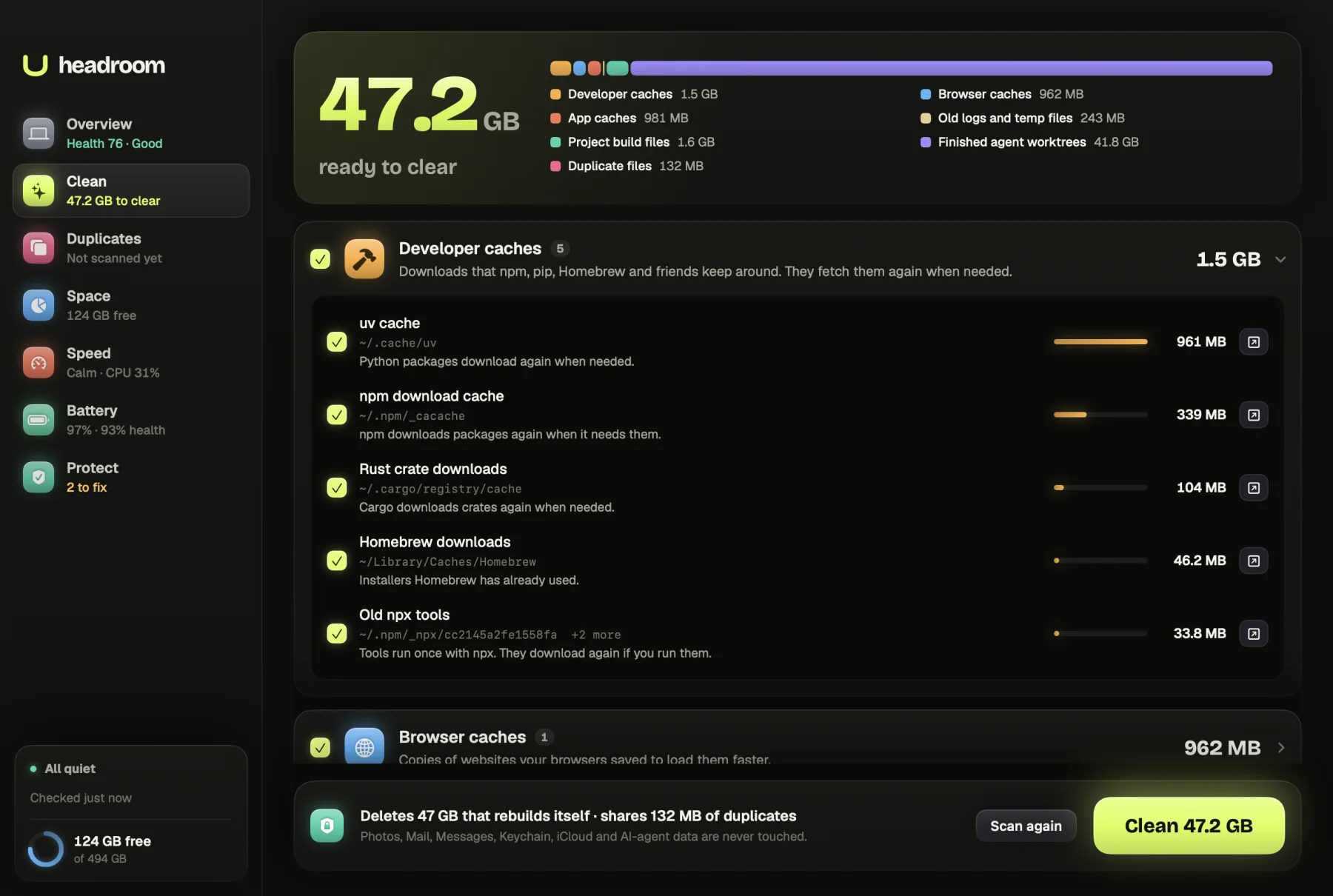
Headroom's free scan lists your Xcode DerivedData and iOS Simulator caches in its Developer caches group, with the size of each, next to npm, Homebrew, CocoaPods and other package caches. Its Space map shows your whole home folder by size, so you can see how much of the total ~/Library/Developer really is before you start.
The scan is free. A $19 one-time licence, for up to three Macs, lets you tick what goes and clear it in one step. Headroom leaves archives, device support and simulator runtimes to you, because only you know which builds and OS versions you still support. See the price or download Headroom.
Questions
Is it safe to delete Xcode DerivedData?
Yes. DerivedData holds project indexes, logs and build products that Xcode generates from your source. Quit Xcode, delete the folder, and Xcode rebuilds what it needs on the next build. That first build and the re-index take longer than usual.
Will deleting DerivedData delete my code or my project settings?
No. Your source files, project file and schemes live in your project folder. DerivedData only holds things Xcode made from them, plus copies of Swift packages it fetched, which it downloads again.
Can I delete old Xcode archives?
Delete archives you never shipped. Apple says to keep the archive for every build you distribute, because it holds the dSYM files that turn crash reports into readable function names. Move old shipped archives to an external drive if you need the room.
How do I remove old iOS simulators?
Run xcrun simctl delete unavailable to remove simulators whose OS runtime is no longer installed. Remove whole simulator runtimes in Xcode > Settings > Components, which shows how much space each one frees.
What is the iOS DeviceSupport folder?
It holds debug symbols Xcode copies from each iPhone or iPad OS version you have connected for debugging. Delete the folders for versions you no longer test on. Xcode copies them again if you connect a device running that version.