What is System Data on Mac, and how do you shrink it?
What macOS counts as System Data, why it can take up so much space, and the safe steps that make it smaller without breaking anything.
System Data is the part of your Mac's storage that macOS can't put into any other category. Apple describes it as files the system uses, such as logs, caches, virtual memory files, temporary files, fonts, app support files and plug-ins. You can't delete it from Storage settings, but you can make it smaller by clearing what feeds it: restart to clear swap and temporary files, remove the big app caches, and let old Time Machine snapshots go.
The rest of this guide explains what is really inside System Data, how to measure each part, and which parts are safe to clear.
Where System Data shows up
You'll find it in Storage settings on macOS 15 Sequoia and macOS 14 Sonoma:
- Choose Apple menu > System Settings.
- Click General in the sidebar, then click Storage.
- Wait for the calculation to finish. While it is still running, totals can shift between categories.
- Scroll to the bottom of the category list. System Data sits there with macOS and Other Users & Shared.
Unlike Applications or Documents, System Data has no Info button. Apple's guide to Storage settings on Mac confirms you can't select or delete its files, because macOS manages them, and suggests using Finder or the apps that created the data instead. Older versions of macOS called the same category Other, and Apple's Free up storage space on Mac page still refers to it as System Data (or Other).
Don't confuse it with the macOS row. That one is the operating system itself, sealed on its own read-only volume, and there is nothing to clear in it.
What System Data actually contains
System Data isn't one folder. It is everything left over after Storage settings has counted your apps, documents, photos, mail, messages, backups and the rest. On a typical Mac, the leftovers come from a few places.
Caches
Apps store downloaded images, compiled code and other reusable files so they can load faster next time. Most live in ~/Library/Caches. Apps built on web technology, such as Slack, Discord and VS Code, keep extra cache folders named Cache, Code Cache and GPUCache inside their own folder in ~/Library/Application Support. Browsers can hold several gigabytes between them. Caches rebuild themselves, which makes them the safest thing to clear.
Logs
Apps write logs to ~/Library/Logs and /Library/Logs, and crash reports pile up in the same places. macOS trims its own system logs automatically, but a misbehaving app can write to its log non-stop.
Swap and the sleep image
When memory runs short, macOS moves some of it to swap files on the disk. On current macOS these live on their own volume at /System/Volumes/VM, and there is often a sleep image in /private/var/vm too, which holds the contents of memory during sleep. Swap grows when you run heavy apps for a long time and goes away when you restart. Never delete these files by hand.
Time Machine local snapshots
If Time Machine backs up automatically, macOS takes a local snapshot of your startup disk about every hour and keeps it for 24 hours, plus one before each macOS update. Apple explains in About Time Machine local snapshots that your Mac counts this space as available storage and deletes snapshots as they age or when space is needed. They are still real data on the disk until then, so they are worth checking when System Data looks too big.
Temporary files
Apps and macOS itself write short-lived files to /private/var/folders. macOS clears these itself, and a restart removes many of them.
App data and containers
Apps keep databases, downloaded content, offline copies and settings in ~/Library/Application Support, ~/Library/Containers and ~/Library/Group Containers. This is real data, not cache: deleting a container wipes that app's settings and anything it stored offline. Big single files can land here too, such as a Docker Desktop disk image or a virtual machine.
Is a large System Data figure a problem?
Not by itself. The number only matters when your disk is close to full. macOS needs free space for swap, caches and updates, and when space runs low it already clears caches, logs and purgeable data on its own. Chasing System Data down on a Mac with plenty of room gains you little, because every cache you clear starts growing again the next time you use the app. Clear it when you need the space, or when the figure keeps climbing for no clear reason.
Measure it yourself
Storage settings gives you one number. Terminal tells you where it comes from. Every command below only reads, so it is safe to run.
How big are your user caches and logs?
du -sh ~/Library/Caches ~/Library/Logs
Which apps keep the most data in Application Support? This can take a minute or two on a busy Mac:
du -sh ~/Library/Application\ Support/* 2>/dev/null | sort -h | tail -10
How much swap is in use right now?
sysctl vm.swapusage
The output lists total, used and free swap in megabytes.
Are there any Time Machine local snapshots?
tmutil listlocalsnapshots /
If it prints only Snapshots for disk /: with nothing below, there are none.
Some folders, such as ~/Library/Containers, are protected by macOS privacy controls. Terminal may report "Operation not permitted" for them, or macOS may ask whether to allow access. That is normal and doesn't mean anything is wrong.
How to reduce System Data safely
Work through these in order. The first steps are the safest and often enough.
- Restart your Mac. It clears swap files and many temporary files. If your Mac has been running for weeks, this alone can bring System Data down.
- Clear the large app caches. Quit the app first, then remove the contents of its cache folder, not the folder itself. Our guide to clearing cache on a Mac covers browsers, apps and developer tools step by step.
- Let old snapshots go. macOS removes them as space is needed. If you need the space now, choose System Settings > General > Time Machine, click Options…, set Backup Frequency to Manually, wait a few minutes, then set it back. Our guide to purgeable space on a Mac explains snapshots in more depth.
- Remove leftovers from apps you have deleted. Look in
~/Library/Application Supportand~/Library/Containersfor folders named after apps you no longer have. Move those to the Bin. Only do this for apps that are gone: removing the folder of an app you still use resets it and can lose its data. - Trim developer and virtual machine data. Docker Desktop, virtual machines and Xcode simulators can each hold a lot. Remove unused images, machines and simulators from inside the app that made them, rather than deleting their files in Finder.
- Try safe mode if you are stuck. Apple notes that starting up in safe mode clears certain system caches, which can free space for a short while, for example to let a macOS update install. On an Apple silicon Mac, shut down, press and hold the power button until "Loading startup options" appears, select your startup disk, then hold Shift and click Continue in Safe Mode. Restart normally to leave. Apple's steps are in Start up your Mac in safe mode.
What not to do
Plenty of advice online goes too far. Avoid these:
- Deleting folders in /private/var, /System/Volumes/VM or /Library by hand. macOS relies on them, and a wrong deletion can stop apps or macOS from working.
- Running sudo rm -rf commands copied from forums. They delete without asking and can't be undone.
- Turning off System Integrity Protection to reach protected files. It weakens your Mac's security and frees nothing you couldn't free the safe way.
- Reinstalling macOS to fix it. A reinstall over the top keeps your apps and their data, so it rarely shrinks System Data much.
When System Data keeps growing
A System Data figure that climbs every day usually means one app is writing far more than it should. To find it, run the Application Support command above, note the biggest folders, and run it again a day later. Do the same for ~/Library/Caches and ~/Library/Logs. The folder that grew is your culprit. Updating, resetting or reinstalling that app normally stops it.
If the disk is close to full and you need room urgently, the complete guide to freeing up space on Mac lists the quickest wins first.
See inside System Data with Headroom
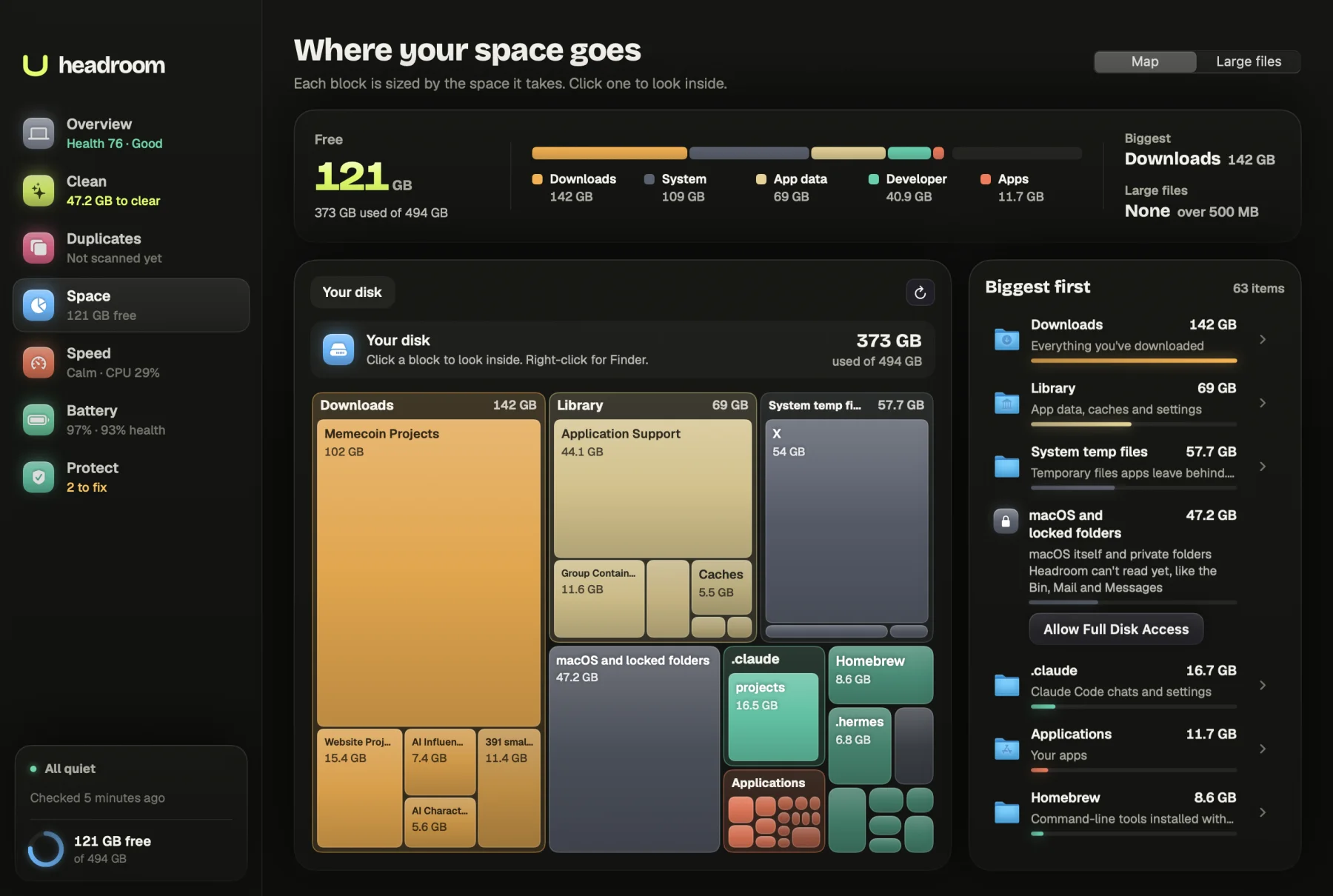
Storage settings won't open System Data, but Headroom's Space tab shows the folders behind it. Its disk map lays out every folder biggest first, with app data (the settings, caches and files apps keep for themselves) marked separately from your documents, so the folders most likely to be inflating System Data stand out. The map is free.
Headroom's free Clean scan lists the safe parts: browser and app caches, developer caches, logs older than two weeks and temp files older than a week, each with a note on what it is. The $19 one-time licence lets you clear them on up to three Macs. Download Headroom to see your own breakdown.
Questions
Can I delete System Data on my Mac?
Not directly. Storage settings won't let you select it, and deleting system folders by hand can break macOS. Shrink it instead by restarting, clearing large app caches and letting old Time Machine snapshots expire.
Why does System Data keep growing?
Usually one app is writing large caches or logs, swap is growing under heavy memory use, or Time Machine snapshots are building up. Measuring your Library folders in Terminal shows which one it is.
Is System Data the same as Other storage?
Yes. Older versions of macOS called this category Other. It holds files that don't fit any other Storage category, such as caches, logs and swap files.
Does restarting a Mac reduce System Data?
Often a little. A restart removes swap files and many temporary files. Caches, app data and snapshots stay until you or macOS clear them.
Do iPhone backups count as System Data?
No. On current macOS, iPhone and iPad backups appear under iOS Files in Storage settings, where you can select old ones and delete them.