How to clear cache on Mac: browsers, apps and system
Clear browser, app and developer caches on a Mac the safe way, with exact steps for Safari and Chrome, Terminal checks, and what to leave alone.
To clear cache on a Mac, quit the app, choose Go > Go to Folder… in Finder, type ~/Library/Caches, and move the contents of that app's folder to the Bin. For browsers, use the browser's own option instead: Develop > Empty Caches in Safari, or Delete browsing data in Chrome. Leave system caches alone, because macOS manages them and clears them itself when space runs low.
Below are the exact steps for Safari, Chrome and other apps, a quick way to see which caches are worth clearing, and the folders that look like caches but aren't.
What a cache is, and when clearing it helps
A cache is a store of files an app has already downloaded or worked out, such as images, fonts, scripts and thumbnails, so it doesn't have to fetch or build them again. Apps are meant to be able to rebuild everything in a cache, which is why clearing one is generally safe.
Clearing a cache is worth it when:
- one app's cache has grown to several gigabytes and you need the space
- a website keeps loading an old version of a page, or looks broken in one browser only
- an app started misbehaving after an update and a reinstall is the next step
It is not worth it for speed. Right after you clear a cache, the app has to download and rebuild everything, so it is often slower for a while. Clearing dozens of small caches gains almost nothing, and the space fills again as you use your apps.
Clear the Safari cache
Safari gives you two options. One empties the cache and keeps you signed in. The other removes cookies and website data too.
Empty the cache only
- In Safari, choose Safari > Settings, then click Advanced.
- Tick Show features for web developers, then close Settings.
- Choose Develop > Empty Caches from the menu bar.
This keeps your history, logins and saved passwords. Apple gives the same steps in If iCloud Mail isn't working, as a fix when iCloud.com won't load properly. The steps are the same on macOS 15 Sequoia and macOS 14 Sonoma.
Remove website data as well
- Choose Safari > Settings, then click Privacy.
- Click Manage Website Data….
- Select one or more sites and click Remove, or click Remove All.
This clears cookies and stored data along with the cache, so you'll be signed out of those sites. It is the better choice when one site is misbehaving: search for it in the list and remove just that one. Apple covers this in Clear your cache and cookies in Safari on Mac.
Clear the Chrome cache
- Click the More button (three dots) at the top right of a Chrome window.
- Choose Delete browsing data.
- Set the time range to All time.
- Tick Cached images and files. Untick browsing history and cookies if you want to keep them.
- Click Delete data.
Edge, Brave, Vivaldi and other browsers built on Chromium have the same option in their privacy settings. In Firefox, go to Settings > Privacy & Security, find Cookies and Site Data, click Clear Data… and tick only the cache option.
Clear app caches in your Library folder
Most apps keep their cache in your user Library, which Finder hides by default. Here is how to clear one app's cache safely:
- Quit the app with Command-Q. Check the dot under its Dock icon has gone, and quit any menu bar helper it has too.
- In Finder, choose Go > Go to Folder…, type
~/Library/Cachesand press Return. - Choose View > as List, then View > Show View Options, and tick Calculate all sizes. Click the Size column to sort.
- Open the folder for the app. Some use the app's name; others use its bundle ID, such as
com.spotify.clientfor Spotify. - Press Command-A to select everything inside, then choose File > Move to Bin.
- Open the app and check it works. Then empty the Bin to get the space back.
Moving the files to the Bin first means you can put them back if anything goes wrong. Leave the app's folder itself in place.
Some apps keep their cache somewhere else. Apps built on web technology, such as Slack, Discord and VS Code, store it in folders with names such as Cache, Code Cache, CachedData and GPUCache inside their own folder in ~/Library/Application Support. Clear only those cache folders. Everything else there is the app's real data, including settings and offline messages.
See which caches are big
Before you clear anything, find out which caches are worth the effort:
du -sh ~/Library/Caches/* 2>/dev/null | sort -h | tail -15
This measures every folder in your user cache folder and prints the 15 biggest, largest last. It only reads. Folders under a few hundred megabytes rarely matter.
Move a cache to the Bin from Terminal
macOS 15 Sequoia includes a trash command that moves files to the Bin rather than deleting them. Quit the app first, then:
trash ~/Library/Caches/com.spotify.client/*
This moves everything inside Spotify's cache folder to the Bin and leaves the folder itself in place. Check the path carefully before you press Return, because a typo can move the wrong files. You can still restore them from the Bin until you empty it. If Terminal says command not found, use the Finder steps above instead.
Clear developer caches
Package managers and build tools keep large caches of everything they have downloaded or built. Each has its own clean-up command, and it is better to use that than to delete the folders by hand. These commands delete files rather than moving them to the Bin, but everything they remove downloads again the next time it is needed:
npm cache clean --force
Deletes npm's download cache in ~/.npm/_cacache. Your projects are not touched.
pip3 cache purge
Deletes pip's cache of downloaded Python packages. Use pip instead of pip3 if that is how you run it.
brew cleanup
Deletes old versions of Homebrew packages, outdated downloads and any download older than 120 days. The current versions stay installed.
Xcode's DerivedData folder is a cache too, and often the biggest one on a developer's Mac. Our guide to clearing Xcode DerivedData covers it along with simulators and archives.
System caches and the DNS cache
The folders /Library/Caches and /System/Library/Caches belong to macOS and the software installed for all users. Leave them alone. macOS clears caches, logs and other files that are safe to delete on its own when space runs low, and Apple notes in Free up storage space on Mac that starting up in safe mode clears certain system caches too.
The DNS cache is different. It is a short list of web addresses your Mac has already looked up, kept in memory, not on disk. Flushing it can help when a site has moved to a new server and your Mac still can't reach it:
sudo dscacheutil -flushcache; sudo killall -HUP mDNSResponder
Terminal asks for your password. Nothing is deleted from the disk; your Mac simply looks the addresses up again.
What not to clear
Not everything with "cache" in its name, or that looks disposable, is safe to remove:
- Whole folders in ~/Library/Application Support or ~/Library/Containers. These hold app data, not just caches. Removing one resets the app and can lose offline content.
- Anything inside your Photos or Music library. They are packages that their apps manage. Use the apps instead.
- Caches of an app that is still open. The app may write new files as you remove the old ones, or crash.
- Everything at once. Clearing all of
~/Library/Cachesis mostly harmless, but it makes every app slower for a while for very little gain. Pick the big ones.
If caches are only part of the problem, the complete guide to freeing up space on Mac covers the bigger wins, and what System Data is on a Mac explains where caches sit in the Storage totals.
Let Headroom find the big caches
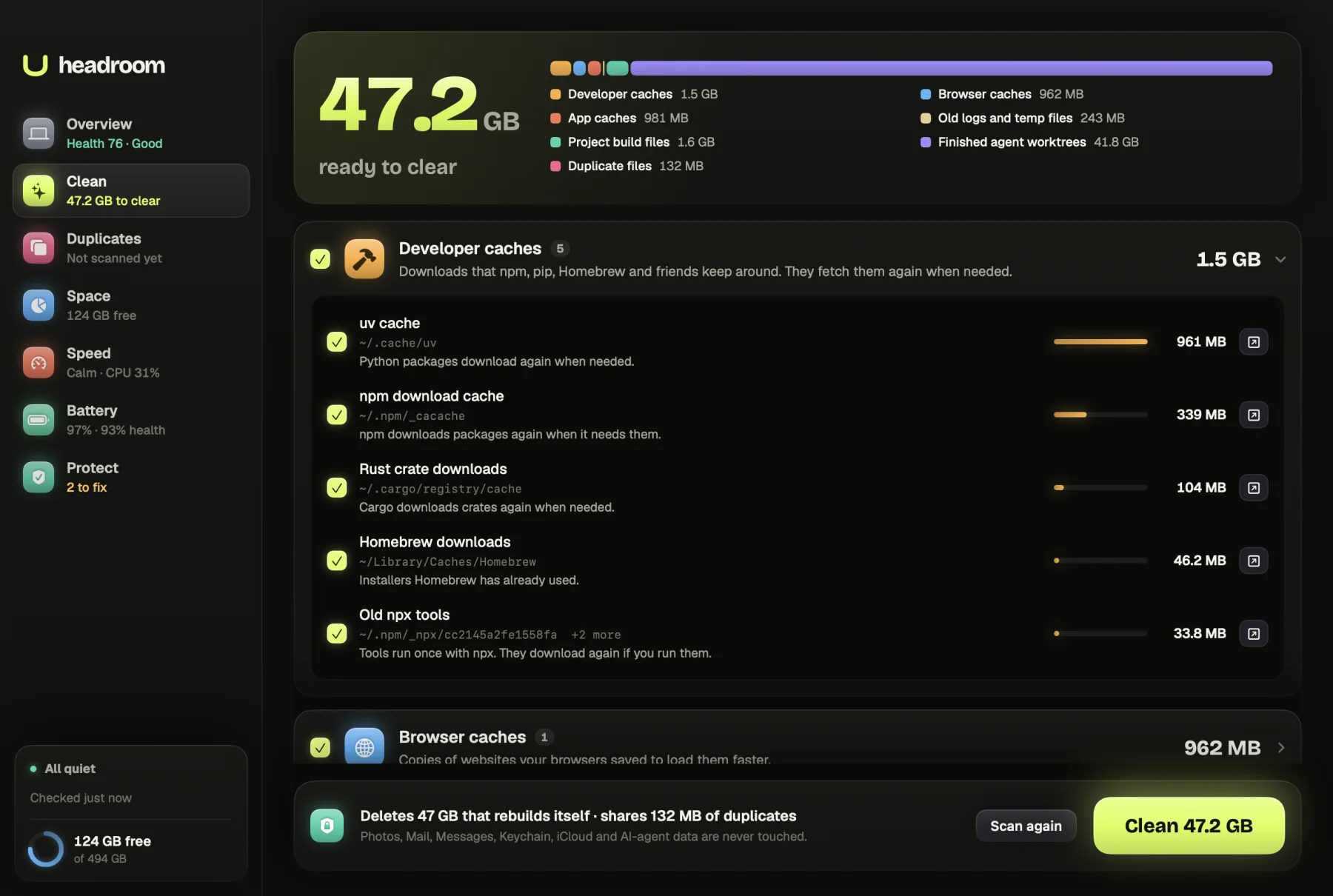
Headroom's free scan does the measuring for you. Clean lists browser caches for Chrome, Firefox, Edge, Brave, Arc and other browsers, app caches for apps like Spotify, Slack, Discord, VS Code and Zoom, and developer caches for npm, pip, Homebrew, Xcode and more, plus logs older than two weeks and temp files older than a week. Each line says what happens if it goes, such as "Images reload. Messages and settings stay." If an app is still open, Headroom asks you to quit it first.
The scan is free. The $19 one-time licence clears what you tick, on up to three Macs. Download Headroom.
Questions
Is it safe to delete cache files on a Mac?
Files inside ~/Library/Caches are generally safe to remove because apps rebuild them. Quit the app first, remove the contents of its cache folder rather than the folder, and leave system caches to macOS.
Will clearing the cache sign me out of websites?
Clearing only the cache won't. Removing cookies or website data will, which is what Safari's Manage Website Data does. Use Develop > Empty Caches in Safari, or tick only cached images and files in Chrome, to keep your logins.
How often should I clear the cache on my Mac?
There's no need for a schedule. Clear a cache when you need the space, when one app's cache has grown very large, or when a website or app keeps showing old or broken content.
Does clearing the cache speed up a Mac?
Usually not. Caches exist to make apps faster, so the first launch after clearing is often slower. The benefits are free space and fixing glitches caused by stale or damaged files.
How do I clear the DNS cache on a Mac?
In Terminal, run sudo dscacheutil -flushcache; sudo killall -HUP mDNSResponder and enter your password. It deletes no files. It only makes your Mac look up web addresses afresh.