Purgeable space on Mac: what it is and how to clear it
Purgeable space is storage macOS can free by itself: snapshots, caches and iCloud copies. See how much you have and how to reclaim it safely.
Purgeable space is storage taken up by files macOS can delete on its own whenever it needs room: Time Machine local snapshots, caches and logs that are safe to remove, and local copies of files that are also stored in iCloud. macOS counts that space as available, so in most cases you can leave it alone and apps will still be able to use it.
You only need to act when something checks for truly free space and refuses to run, or when the purgeable figure looks far too big. The one piece you can clear yourself is APFS local snapshots. This guide explains what purgeable space is made of, how to measure it, and how to remove snapshots the Apple-approved way and from Terminal.
What counts as purgeable
Apple does not label every item, but its support articles describe what macOS clears or counts as available when space runs low.
- Time Machine local snapshots. When automatic backups are on, Time Machine saves a snapshot of your startup disk about every hour and keeps it for 24 hours. It also keeps one of your last successful backup until space is needed, and takes one before each macOS update. Apple's About Time Machine local snapshots says your Mac counts the space they use as available storage.
- Caches and logs. Apple's Optimise storage space page says that when space is needed, macOS clears caches and logs that are safe to delete, including temporary database files, interrupted downloads, staged updates and Safari website data.
- iCloud copies. With Store in iCloud turned on, macOS can keep only recently opened files on your Mac when space is needed and leave the rest in iCloud Drive.
Apple's Disk Utility guide adds the key rule: you can't remove purgeable files manually. macOS removes them automatically when it needs the room.
Why developers run into it
Terminal tools report a different number from macOS's own storage views. df shows only space that is free right now, while Storage settings and Disk Utility can include purgeable space in "available". The gap grows with the snapshots and caches macOS is holding at the time.
That difference matters when a tool checks free space before it starts, or when you are about to download a large SDK or container image and want to know what you really have.
Measure purgeable space
In Disk Utility
- Open Disk Utility from Applications > Utilities.
- Choose View > Show All Devices.
- Select your startup volume (usually Macintosh HD) in the sidebar.
- Click the Info button in the toolbar.
Apple's guide to the Info window notes that the available space it reports can include both free space and purgeable space.
In Terminal
df -h /System/Volumes/Data
This shows the size, used and available space of the volume that holds your files. "Avail" is space that is free right now, without purgeable space. It only reads.
To estimate purgeable space directly, you can ask macOS for both numbers. This uses Swift, which comes with Xcode or the Command Line Tools:
printf '%s\n' 'import Foundation' \
'let v = try! URL(fileURLWithPath: "/").resourceValues(forKeys: [.volumeAvailableCapacityKey, .volumeAvailableCapacityForImportantUsageKey])' \
'let free = Double(v.volumeAvailableCapacity!), usable = Double(v.volumeAvailableCapacityForImportantUsage!)' \
'print(String(format: "Free: %.1f GB  Usable: %.1f GB  Purgeable (approx): %.1f GB", free/1e9, usable/1e9, (usable-free)/1e9))' \
| swift -
It prints three figures: space free right now, space macOS would make available to an app storing something important, and the difference between the two, which is roughly your purgeable space. It reads values and changes nothing. The first run takes a few seconds while Swift compiles it.
Check for local snapshots
Snapshots are usually the largest part, and the part you can control.
tmutil listlocalsnapshots /
This lists Time Machine's local snapshots on your startup disk. Each one has a name like com.apple.TimeMachine.2026-11-15-093012.local, and if there are none you see only the heading line. It only reads.
tmutil listlocalsnapshotdates /
This prints just the dates, in the YYYY-MM-DD-HHMMSS form that tmutil uses when you delete one. It only reads.
For a fuller view, including snapshots other apps have made:
diskutil apfs listSnapshots /System/Volumes/Data
This lists every APFS snapshot on the volume that holds your files, with a Purgeable: line for each one. It changes nothing. If you run the same command on / you will see one snapshot named com.apple.os.update- followed by a long code, marked Purgeable: No. That is the sealed snapshot macOS itself runs from. It is normal, and you should leave it alone.
Disk Utility can show the same information: choose View > Show APFS Snapshots and select a volume, as Apple describes in View APFS snapshots in Disk Utility. The table includes size columns for each snapshot.
Clear local snapshots the Apple way
Apple's recommended method is to pause automatic backups briefly. On macOS 15 Sequoia, and the same on macOS 14 Sonoma:
- Choose Apple menu > System Settings, click General in the sidebar, then click Time Machine.
- Click Options.
- Set Backup frequency to Manually, then click Done.
- Wait a few minutes while the local snapshots are deleted.
- Go back to Options, set Backup frequency to your usual schedule, and click Done.
Time Machine remembers your backup disks, so nothing else needs setting up again. Run tmutil listlocalsnapshots / before and after to check it worked.
Clear them from Terminal
tmutil can also remove snapshots directly. These change your Mac, so read each warning.
Thin snapshots to free a set amount
tmutil thinlocalsnapshots / 20000000000 4
This asks Time Machine to reclaim about 20 GB (the figure is in bytes) by thinning local snapshots, at urgency level 4 on a scale of 1 to 4. Time Machine chooses which snapshots to remove. If it reports a permissions error, run it again with sudo in front. Warning: removed snapshots are restore points you can't get back.
Delete one snapshot
sudo tmutil deletelocalsnapshots 2026-11-15-093012
Replace the date with one from tmutil listlocalsnapshotdates /. The tmutil manual says this deletes all local Time Machine snapshots for that date on all mounted disks. sudo asks for your administrator password. Warning: this is permanent.
Delete all of them on a disk
sudo tmutil deletelocalsnapshots /
On current versions of macOS, giving a disk instead of a date deletes every local Time Machine snapshot on that disk. Run man tmutil to check the forms your version accepts. Warning: this removes every local restore point on the startup disk. Only do it if your Time Machine backup disk, or another backup, is up to date.
Snapshots from other apps
Some backup and sync apps create APFS snapshots of their own. They show up in diskutil apfs listSnapshots with names that don't start with com.apple.TimeMachine. Remove those from inside the app that made them, so it doesn't lose track of its own backups. Disk Utility's snapshot view also has a delete button, but it does not know which app still needs a snapshot.
Other ways to give macOS a nudge
- Restart in safe mode. Apple's Free up storage space on Mac says starting up in safe mode clears certain system caches, which can temporarily free more space. Restart normally afterwards.
- Empty the Bin. Files in the Bin still take up space until you empty it. They are not purgeable.
- Leave the rest. If purgeable space is still high after snapshots are gone, it is most likely caches and iCloud copies that macOS is keeping because you have room. It hands them back when an app asks for the space.
When the real problem is ordinary files
Purgeable space looks after itself. The space that doesn't is ordinary files: old build folders, package caches, installers you have already used, Docker images and duplicate copies. If you are short of room, those are the place to look:
- What System Data is and how to shrink it
- How to free up space on a Mac
- Docker Desktop disk space on a Mac
Find what won't purge itself, with Headroom
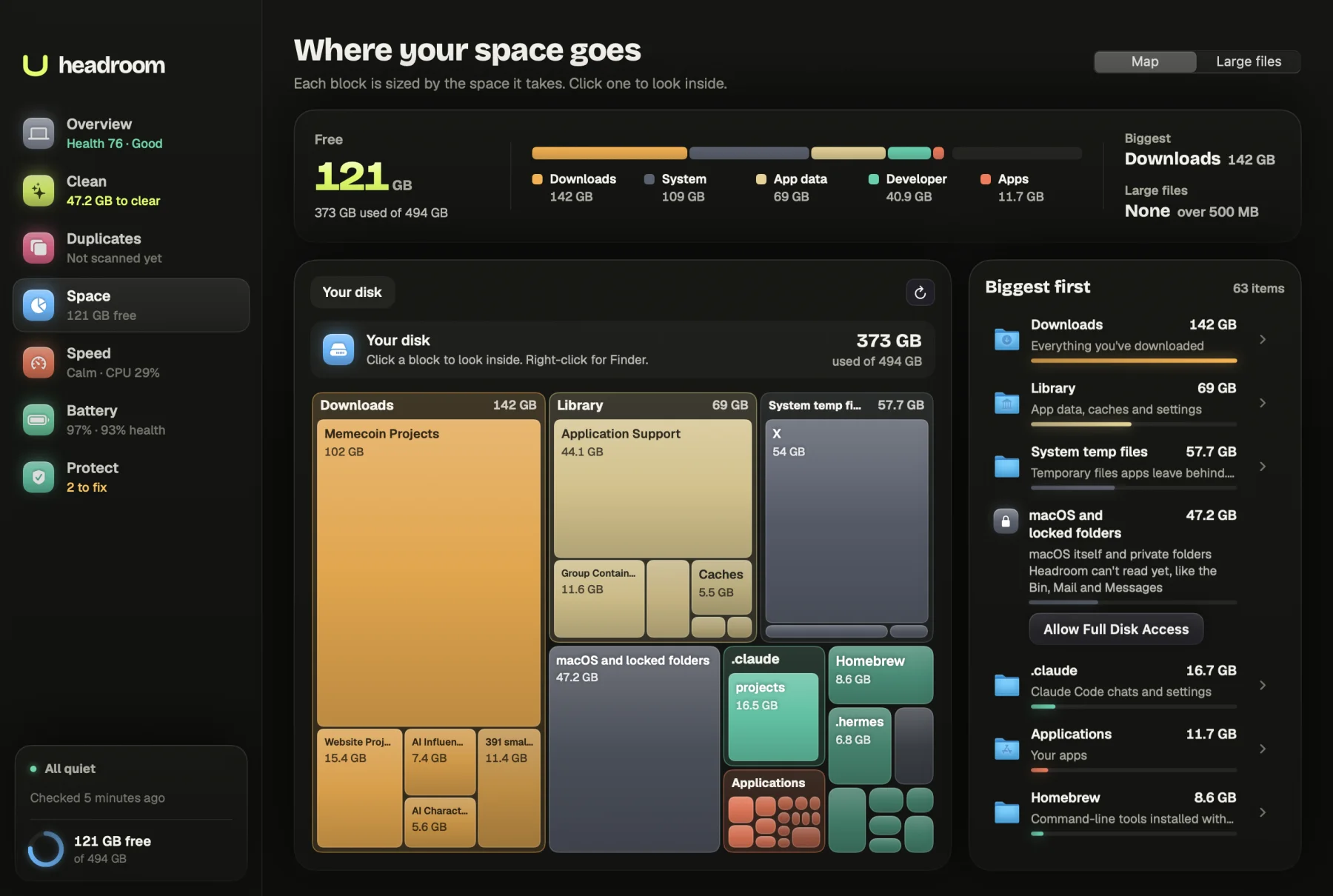
Headroom does not touch snapshots or purgeable space; macOS manages those, and Time Machine gives you the controls above. What Headroom's free Space map shows is the space that is really in use: an interactive map of your home folder, apps and Homebrew, measured on disk, biggest first, with a Large files view that shows when each file was last opened.
The free Clean scan then lists caches, old build folders, finished worktrees and old installers, explaining each one. A $19 one-time licence, for up to three Macs, clears what you tick. See the price or download Headroom.
Questions
What is purgeable space on a Mac?
It is storage used by files macOS can remove on its own when it needs room, such as Time Machine local snapshots, caches and local copies of files kept in iCloud. macOS counts it as available, so apps can still use that space.
Can I delete purgeable space manually?
Not directly. Apple's Disk Utility guide says purgeable files can't be removed by hand, because macOS removes them when space is needed. The exception is Time Machine local snapshots, which you can remove yourself.
Why does Terminal show less free space than Storage settings?
Commands such as df report only space that is free right now. Storage settings and Disk Utility can also count purgeable space, such as local snapshots, as available, so they show a bigger number.
How do I delete Time Machine local snapshots?
Apple's method is to set Time Machine's backup frequency to Manually, wait a few minutes while the snapshots are deleted, then switch automatic backups back on. In Terminal, tmutil thinlocalsnapshots and tmutil deletelocalsnapshots do the same job.
Is it safe to delete local snapshots?
Yes, as long as you have a real backup. Local snapshots let you restore recent versions of files when your backup disk isn't connected, so deleting them removes those restore points. Your files themselves are untouched.