Delete node_modules and other build folders safely
Find every node_modules, .next, target and venv folder on your Mac, see what each one costs, and delete them so you can rebuild in one command.
Yes, deleting node_modules is safe. The folder is generated from package.json and the lockfile, so npm ci, pnpm install, yarn install or bun install rebuilds it whenever you need the project again. The same is true of most build folders: .next, Rust's target, Python's venv and the caches that bundlers leave behind.
The work is in finding them all, checking each project can be rebuilt, and deleting the idle ones without touching anything you are working on today. This guide gives you the commands for each step, the reversible version of every delete, and a list of other folders worth checking.
Why these folders get so big
With npm and Yarn Classic, every project gets its own full copy of every dependency, including dependencies of dependencies. Ten projects that use the same framework store it ten times. Build tools add their own output and caches on top.
pnpm works differently. Its documentation explains that it keeps each package version once in a content-addressable store and hard-links or clones files into each project. Deleting a pnpm project's node_modules therefore frees less than you might expect. The space mostly lives in the store, which you clean separately (see below).
Find every node_modules folder
Open Terminal (Apple's Terminal User Guide covers the basics) and run this, replacing ~/Projects with the folder where you keep your code:
find ~/Projects -name node_modules -type d -prune 2>/dev/null
This prints the path of every node_modules folder under ~/Projects. The -prune option stops find from searching inside each one, which matters because a single node_modules can hold thousands of folders. It only reads.
To see sizes, sorted with the biggest at the bottom:
find ~/Projects -name node_modules -type d -prune -exec du -sh {} + 2>/dev/null | sort -h
And for a single total:
find ~/Projects -name node_modules -type d -prune -exec du -sk {} + 2>/dev/null | awk '{s+=$1} END {printf "%.1f GB\n", s/1048576}'
Both only read. On a large folder of projects they can take several minutes. If you point them at your whole home folder (~), macOS may ask whether Terminal can access Desktop, Documents or Downloads. Allow it only if you are happy for Terminal to read those folders.
Three checks before you delete
- There is a lockfile. Look for
package-lock.json,pnpm-lock.yaml,yarn.lock,bun.lockorbun.lockbnext topackage.json. With a lockfile, reinstalling gives you the same versions. Without one, you may get newer versions that behave differently. - Nothing was edited inside node_modules. If you patched a package by hand, the change lives only in that folder and disappears with it. Tools like patch-package keep patches outside, in a
patchesfolder, so they survive. - The project is not running. Stop dev servers, watchers and test runners for that project first. Deleting files from under a running process can cause confusing errors.
Also remember you need a network connection, or a warm package cache, to reinstall.
Delete one project's node_modules
The reversible way
In Finder, select the node_modules folder and press Command-Delete to move it to the Bin. In Terminal, macOS 14 Sonoma and later include a trash command that does the same:
cd ~/Projects/my-app
trash node_modules
This moves the folder to the Bin, so you can put it back if you need to. The space is only freed when you empty the Bin, as Apple notes in Free up storage space on Mac. Emptying the Bin afterwards can take a while, because node_modules holds so many small files.
The permanent way
cd ~/Projects/my-app
rm -rf node_modules
Warning: rm -rf deletes immediately and skips the Bin. Run pwd first to check you are in the right project, and never run it with a path you have not read twice.
Put it back
npm ci
npm ci installs exactly what package-lock.json describes and never rewrites the lockfile. It also removes an existing node_modules before it starts, so it is a clean reinstall in one step. For other package managers, use pnpm install, yarn install or bun install.
Delete many at once
First list exactly what will go:
find ~/Projects -name node_modules -type d -prune -print
Read the list. If it is right, move them all to the Bin:
find ~/Projects -name node_modules -type d -prune -exec trash {} +
Warning: this moves every node_modules under ~/Projects to the Bin, including projects you are working on today. Narrow the starting folder if you want to keep some. Swapping trash for rm -rf makes the deletion permanent; only do that once you trust the list.
There is also npkill, an open-source npm package that shows an interactive list of node_modules folders with their sizes (npx npkill). It is a third-party tool, so read its documentation before you use it.
Let Git show you every ignored folder
In a Git repository, build output is usually listed in .gitignore. Git can show you everything it ignores:
git clean -ndX
-n makes this a dry run, -d includes whole folders and -X limits it to files Git ignores. It lists what a real clean would remove and deletes nothing.
Warning: ignored files are not only build output. They often include .env files, local databases, certificates and editor settings. Do not run the same command with -f instead of -n unless you have read every line. Use the list to spot folders, then delete those folders by name.
Other build folders worth checking
| Folder | Made by | How it comes back |
|---|---|---|
.next |
Next.js | next dev or next build |
target |
Rust (Cargo), also Maven for Java | cargo build, or your Maven build |
venv, .venv |
Python virtual environments | python3 -m venv .venv then pip install -r requirements.txt |
__pycache__ |
Python | Created automatically when code runs |
.turbo, .svelte-kit, .nuxt, .parcel-cache |
Turborepo, SvelteKit, Nuxt, Parcel | Created on the next dev or build run |
dist, build |
Most bundlers | Your build script, but check first |
A few notes:
- Rust.
cargo cleanremoves the wholetargetfolder, andcargo clean --dry-runshows a summary of what it would delete without deleting anything. - Python. The Python documentation calls virtual environments disposable and says you should always have a simple way to recreate one, such as a
requirements.txt. If a project has no requirements file, activate the environment and runpip freeze > requirements.txtbefore you delete it. - dist and build. Some projects commit these, or keep hand-written files in them. Check the project's
.gitignorebefore you remove them.
Clear the package manager caches
Package managers also keep a download cache in your home folder. It is shared by all projects and grows over time.
- npm keeps its cache in
~/.npm.npm cache verifychecks it and garbage-collects anything unneeded, which is safe at any time.npm cache clean --forceempties it completely; npm's own documentation says clearing it is only ever needed to reclaim disk space. - pnpm prints its store location with
pnpm store path.pnpm store pruneremoves packages that no project references, and pnpm's documentation says it is not harmful to your projects. Later installs may download more. - Bun prints its cache folder with
bun pm cacheand clears it withbun pm cache rm.
Warning: after emptying a cache, your next installs download everything again, so expect them to be slower and to need a connection.
Stop it coming back in your backups
node_modules folders are a poor use of backup space, since they can be rebuilt from the lockfile. You can tell Time Machine to skip your code's dependencies, or your whole projects folder if it is already in Git:
- Choose Apple menu > System Settings > General > Time Machine.
- Click Options.
- Click the add button and choose the folders to exclude, or drag them into the list.
- Click Done.
The steps are the same on macOS 14 Sonoma. Apple explains this in Exclude files from a Time Machine backup and notes that excluded items still appear in local snapshots. To check whether a folder is excluded, run tmutil isexcluded ~/Projects, which only reads.
For the rest of your developer tools, see how to clear Xcode DerivedData and simulators, how to free Docker Desktop disk space and how brew cleanup works.
Skip the find commands with Headroom
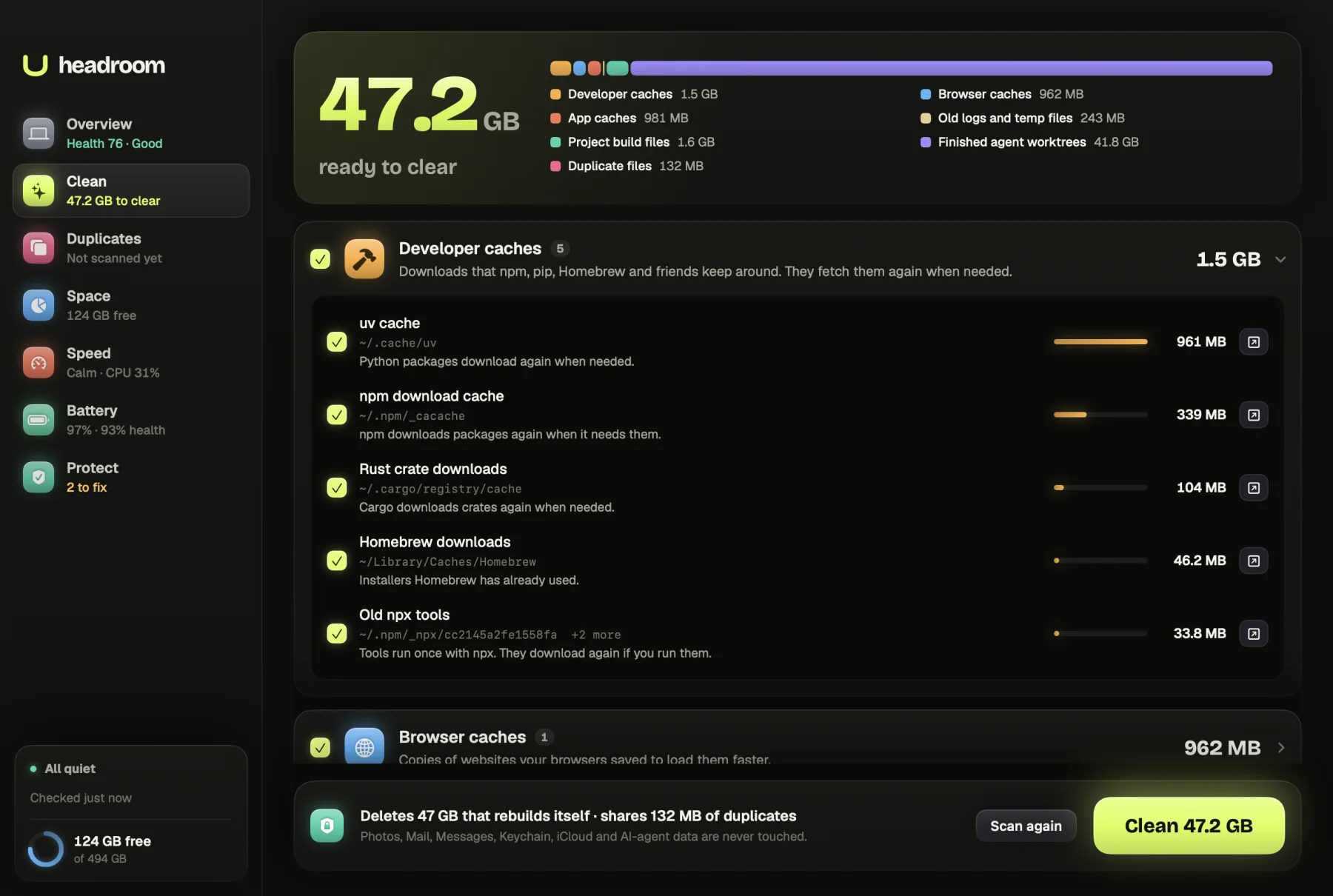
Headroom's Clean scan looks through Downloads, Documents, Desktop, Developer, Projects, Code and similar folders for node_modules, Rust target folders and build caches such as .next, .turbo, .svelte-kit and __pycache__. It only offers node_modules and target from projects nobody has edited for two weeks, and it skips any project that is open right now. It also finds the npm, Yarn and Bun download caches and pnpm's metadata cache.
The scan is free and shows every folder with its size. A $19 one-time licence, for up to three Macs, clears the ones you tick. They are deleted rather than moved to the Bin, because each one rebuilds with a single install. See the price or download Headroom.
Questions
Is it safe to delete node_modules?
Yes, as long as the project has its package.json and lockfile. node_modules is generated from them, so npm ci, pnpm install, yarn install or bun install puts it back. Stop any dev server for that project first.
How do I find all node_modules folders on my Mac?
In Terminal, run find ~/Projects -name node_modules -type d -prune, replacing ~/Projects with the folder you keep code in. The -prune option stops find looking inside each node_modules, which keeps it fast.
Does deleting node_modules free space if I use pnpm?
Less than with npm. pnpm keeps one copy of each package in a shared store and links projects to it, so most of the space lives in the store. Run pnpm store prune to remove packages no project uses.
Can I delete the .next folder?
Yes. .next is the build output Next.js creates when you run next dev or next build. It is recreated the next time you run either, so the only cost is a slower first start.
Is it safe to delete a Python venv?
Yes, if you can recreate it. Python's documentation describes virtual environments as disposable. Make sure you have a requirements file first, then recreate it with python3 -m venv .venv and pip install -r requirements.txt.